The dangers of using Public Wi-Fi go beyond hackers monitoring your internet traffic; even worse, many silent and unnoticed dangers affect you even before you open your web browser. Automatic connectivity settings, file sharing enabled, syncing apps in the background, location tracking features, and unsecured DNS requests are all risks to your privacy without any warning signs. This process can be completed in less than ten minutes and the cost of doing so is virtually zero.
You log onto the Public Wi-Fi at the local coffee shop, place your order and get to work. Everything looks fine, there was no alert message and no pop up.
This is precisely why public Wi-Fi poses such a big risk for us.
The worst part about these vulnerabilities of Public Wi-Fi is that they take place silently in the background without any indication that they are taking place. Many people believe that if there is no apparent threat, then there is no threat.
What follows are seven vulnerabilities affecting your device immediately upon connecting to any public network.
1. Your Phone Connects Automatically — Before You’ve Made a Choice
This is one important detail that is often overlooked by many: You don’t have to manually connect to such a hostile network. It could happen without any effort from your end!
Every time you connect to a Wi-Fi network, your mobile device caches the name of that network (SSID). Next time when your device comes across a network with the same name as the cached one, then it connects to it – silently, without even asking for your permission.
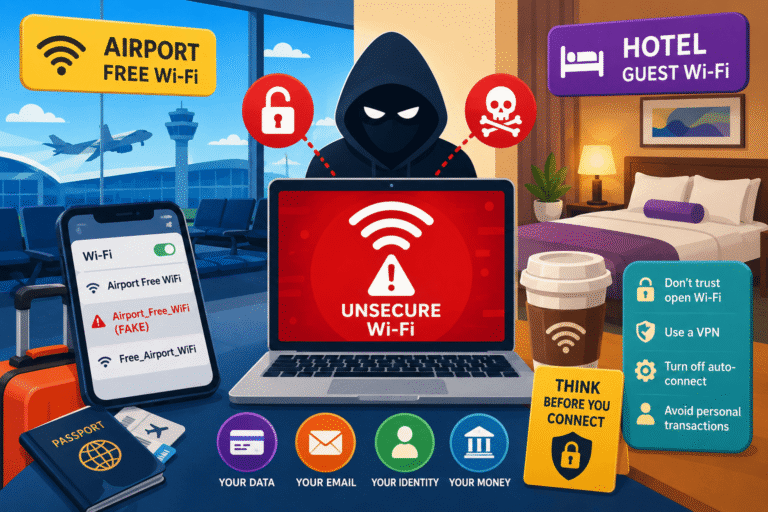
An attacker uses something that is known as “Evil Twin Attack.” In this, he sets up a wireless hotspot with the same SSID as that of a popular public hotspot such as “Starbucks WiFi”, “Airport_Free_WiFi” or “McDonalds.” He also broadcasts his network more strongly than the original one. As a result, your device automatically connects to the network with higher signal strength, which is, in effect, the hacker’s wireless hotspot.
What to Do About It
- Turn off Auto-Join for all saved public networks on your phone.
- On iPhone: Settings → Wi-Fi → tap the (i) next to any public network → toggle off “Auto-Join.”
- On Android: Wi-Fi settings → Long press the saved network → “Forget network” after each use.
- Make it a habit to forget public networks when you leave a location.
This single change prevents the majority of passive connection hijacks. It takes 30 seconds per network. You’ll never have to think about it again once the habit is formed.
For a deeper look at how your phone’s default settings quietly expose you, see our article on the dangerous phone settings most people have turned on right now — auto-connect is just one of three that deserve your attention.
2. File Sharing Is Probably On — and You Don’t Know It
Other devices on the network will be able to access your computer while on the network. This will not be a concern while you’re at home because everything is owned by you. When you’re in a coffee shop using a public network where there are about forty others, that’s where the trouble begins.
There’s a file sharing function on both Windows and Mac operating systems. Network discovery is available under the “Network Discovery” and “File and Printer Sharing” options on Windows. On macOS, network discovery is available under System Settings > General > Sharing.
Here’s the thing – many individuals don’t disable these features after transitioning from home to a coffee shop. Under Windows, when you connect to a café network and select “Public” mode, network discovery will most probably be disabled. However, network discovery will be enabled if you ever remember your computer to save it as “private.”
What Exposed File Sharing Actually Allows
| Risk Level | What Another Device Can Do | Requires |
|---|---|---|
| Low | See your device name and OS in network scan | Any device on the same network |
| Medium | Attempt connections to open ports | Basic scanning tools |
| High | Access shared folders if no password is set | File sharing enabled, no authentication |
| High | Exploit unpatched SMB or AFP vulnerabilities | Known CVE + outdated OS |
The Fix
- Windows: Search for “Network and Sharing Center” → Change advanced sharing settings → Turn off Network Discovery and File Sharing for Public networks.
- macOS: System Settings → General → Sharing → Disable everything unless you specifically need it.
- Always set your network profile to “Public” on Windows when using any non-home network.
3. Your Location Is Being Tracked — Even Without GPS
When thinking about location tracking, people usually think about GPS technology. However, GPS requires your explicit request to track location and a prompt asking for permission. Tracking by means of Wi-Fi, on the contrary, is passive and remains unnoticed.
Every Wi-Fi router is equipped with a MAC address that uniquely identifies it. While searching for new networks, your device transmits the probe requests including the MAC addresses of already known routers. Thus, any interested party can passively observe such requests.
The implications are the following: companies and venues make use of Wi-Fi analytics to learn what devices (with MAC addresses) appear at the premises, for how long, and even where specifically in the building they go. It is offered as retail analytics and footfall tracking, and you are the data point without your consent.
Just connecting to the network exposes you to tracking because IP address allows correlating with the network location and, if combined with the DNS query logs collected by the router, makes you tied to the place.
What This Looks Like in Practice
In shopping centers that offer free Wi-Fi, the information collected from your internet connection tells them the number of visitors, time spent in each shop, and the returning customers for multiple visits. This “free Wi-Fi” is the product. You’re not the customer; your behavior is.
MAC Address Randomization was included by Apple in the latest versions of iOS, which include iOS 14 and later versions. The Android version also does so. Older versions do not have this feature, and although MAC Address Randomization works, the original MAC address is often used when connecting to the network.
The FTC’s IoT privacy report specifically flagged Wi-Fi-based location tracking as a growing consumer concern with limited regulatory protection in most jurisdictions.
4. Background Apps Are Sending Data You Can’t See
Your device doesn’t sit quietly when it connects to Wi-Fi. Dozens of apps immediately wake up and start syncing, sending telemetry, checking for updates, and uploading data. This happens in the background, without any UI, without any notification.
Consider what runs automatically when you connect:
- Email clients fetch new messages (potentially sending authentication tokens)
- Cloud backup apps sync files and photos
- News apps and social media clients refresh feeds and send engagement data
- App stores check for updates (sending your app list and device ID)
- Health and fitness apps sync logged data to cloud servers
- Your phone’s operating system phones home with diagnostics and crash reports
Each of these transmissions is a potential data leak on a network you don’t control. Not all apps use HTTPS properly. Some older apps, particularly on Android, still send certain data unencrypted. Even HTTPS apps expose metadata: which app is calling home, how often, the size of the data transfer, and where it’s going.
On a network that’s being monitored, that metadata alone builds a surprisingly detailed profile — which apps you use, how frequently, at what times of day, and to which services.
How to Limit Background App Exposure
- iOS: Settings → General → Background App Refresh → Set to “Wi-Fi” only (or “Off” to be strict), and review per-app.
- Android: Settings → Apps → select each app → Battery → “Restricted” limits background activity.
- Use a VPN before connecting so all background traffic is encrypted from the moment Wi-Fi connects — not just when you open your browser.
- Consider turning Wi-Fi off entirely when you’re in a public space and not actively needing it. Mobile data is significantly safer for passive background syncing.
This is especially important for anyone who handles work email or company data on their personal phone. Those background syncs happen whether you’re “working” or not — and they happen on every network your device joins.
5. Your DNS Queries Are Leaking Everything — Even on HTTPS Sites
Everyone knows that HTTPS protects the content of the sites. However, not many people realize that HTTPS does not encrypt DNS queries, and DNS queries reveal all the websites that have been visited.
The procedure goes like this: before the browser accesses any website, it asks the DNS server for the IP address corresponding to that domain. The request is sent in the clear text, and anyone monitoring the network (for example, the owner of the router, user of passive capture, the ISP of the internet café) can see which domains were queried.
Thus, even though HTTPS protects everything that is being done on a particular website, the DNS layer reveals the list of sites that have been visited. It is possible to create the full picture of what has been done in the afternoon from the logs of DNS queries.
The DNS-over-HTTPS Solution
DNS-over-HTTPS (DoH) encrypts your DNS queries the same way HTTPS encrypts web content. It’s built into modern browsers and operating systems but is often not enabled by default.
| How to Enable DoH | Steps |
|---|---|
| Chrome | Settings → Privacy and Security → Security → Use Secure DNS → With: [choose provider] |
| Firefox | Settings → Privacy & Security → DNS over HTTPS → Enable → Choose provider |
| Windows 11 | Settings → Network & Internet → Wi-Fi → Hardware Properties → DNS Server → Edit → Enable DoH |
| iOS (system-wide) | Requires a configuration profile or a VPN with DNS leak protection |
| Android 9+ | Settings → Network & Internet → Private DNS → enter hostname (e.g. dns.google) |
The Electronic Frontier Foundation’s analysis of DNS-over-HTTPS provides an honest breakdown of what DoH does and doesn’t solve — worth reading before assuming it handles everything.
6. Captive Portals Can Be Used to Phish You — and They Look Completely Legitimate
You must have encountered captive portals. This is the web page which shows up when you attempt to connect to the Wi-Fi service in a hotel or a café. They usually involve agreeing to terms, inserting a room number or logging in. Users often ignore these.
The fact about captive portals which many users fail to note is the fact that any captive portal works over HTTP protocol rather than HTTPS. The reason behind this fact is that the network is trying to intercept your request before authentication. This makes it possible for the page to be altered.
By deploying an Evil Twin attack (a malicious hotspot), the hacker can display the captive portal which is a copy of the genuine portal from a hotel or an airport. It may ask for your e-mail address and a password for authentication purposes. Since the page appears to be legitimate, users input their passwords, which they actually use elsewhere.
The advanced attacks even ask for credit card details because the network requires payment information. You cannot technically distinguish between a legitimate and a malicious captive portal as both appear as browser popups and share the same look and feel.
What You Should Do at Every Captive Portal
- Never enter a password you use for any real account. Use a throwaway email address where possible.
- Never enter payment details on a captive portal page.
- After passing the captive portal, connect your VPN immediately before doing anything else.
- If a captive portal asks for more than a name and email — especially a real account password — treat it as suspicious.
Understanding how phishing works across different channels helps here. Our article on how to spot fake phishing pages before you click covers the visual and behavioral patterns that separate legitimate pages from fakes — and most of those patterns apply to captive portals too.
7. Data Leaks You Cause Yourself — Without Realizing It
Not all public Wi-Fi risk comes from attackers. A significant category involves data you expose through your own normal behavior — things that would be harmless at home but become problems on a shared network.
Here are the behaviors that create leaks most people never think about:
Checking “Remember Me” on Public Devices
This seems obvious in hindsight but happens constantly: people check “stay logged in” or “remember this device” on public computers connected to public Wi-Fi. Even if you log out, the session cookie may persist in the browser cache.
Using Autofill on Forms
Browser autofill fills in your name, address, phone number, and sometimes payment details automatically when a form field is detected. On a network where someone is performing SSL stripping, the form you’re filling out may not be HTTPS — and autofill just handed over everything.
Forgetting Logged-In Apps in the Background
If you’re logged into your company Slack, your bank’s app, or your email on your phone — and you connect to a compromised network — those apps may make authenticated API calls in the background. A session token sent over a network being intercepted can be captured and replayed later, even if you’ve never typed a password on that device today.
Sharing Sensitive Files or Screens
If you start a Zoom call, share your screen, or send a file attachment over a public network without a VPN, the content of that session may be visible to anyone performing a man-in-the-middle attack on the network.
The pattern here is consistent: things you do routinely and safely at home become risky on public infrastructure because the network layer between you and the internet is no longer trustworthy.
For a broader look at how apps track and collect your data even when you think you’re being careful, our piece on how to stop apps from tracking you on iPhone and Android covers the permission settings that matter most.
Public Wi-Fi: Honest Pros and Cons
| ✅ Genuine Benefits | ❌ Real Risks |
|---|---|
| Free and widely available everywhere | No encryption between your device and the router |
| Saves mobile data for heavy tasks | Auto-connect exposes you before you’ve made a choice |
| Often faster than cellular in dense urban areas | DNS queries leak your browsing habits even on HTTPS |
| Essential when roaming internationally | Evil Twin attacks are invisible and require no technical skill to run |
| Fine for non-sensitive, public-domain browsing | Background apps sync sensitive data without your input |
| Good for streaming or reading with no account | Captive portals can be spoofed to steal credentials |
Your 6-Step Public Wi-Fi Protection Checklist
- Use a reputable, paid VPN — connect it before joining any public network. This is the single most effective protection. Free VPNs frequently monetize your data, which defeats the purpose.
- Disable auto-join for all public networks on your phone and laptop. Forget networks after you leave a location.
- Turn off file sharing and network discovery before connecting. On Windows, set your network to “Public” profile. On macOS, audit your Sharing settings.
- Enable DNS-over-HTTPS in your browser and operating system to encrypt your DNS queries.
- Limit background app refresh on your phone so apps don’t sync data on untrusted networks without your awareness.
- Never enter real passwords or payment details on captive portals. Use your phone’s mobile data for anything involving banking or work accounts.
Understanding the broader landscape of VPN use is just as important as having one. There are common misconceptions about what a VPN actually protects — our article on VPN privacy myths you still believe (but shouldn’t) separates the genuine protection from the marketing claims so you know exactly what you’re getting.
Final Verdict
Public Wi-Fi is not safe by default — but it’s also not unusable. The risks are real and underestimated, but they’re also manageable. Most of the dangerous defaults on your device take less than five minutes to change. A VPN handles the rest for the cost of a monthly coffee. The gap between being exposed and being protected on public Wi-Fi is genuinely small — what’s missing for most people isn’t time or money, it’s awareness of what’s actually happening in the background.
Risk level: High in airports, hotels, transit hubs. Medium in cafés. Low (but nonzero) everywhere else.
Effort to protect yourself: Low — one VPN subscription and a few changed settings.
Bottom line: Treat every public Wi-Fi network as a network you don’t trust. Use it for what it’s worth — convenience — but never for anything you’d be uncomfortable saying out loud in the room.
Trusted External Resources
- FBI Cyber Crime Division — Spoofing and Phishing: The FBI’s official guidance on network-level impersonation attacks, including public Wi-Fi interception scenarios.
- OWASP Foundation — SSL Stripping: The authoritative technical documentation of how HTTPS can be bypassed on networks you don’t control.
- FTC Consumer Advice — Protecting Yourself From Cyber Threats: The Federal Trade Commission’s consumer guidance on public network safety, including Evil Twin warnings.
- EFF — DNS over HTTPS: It’s Complicated: An honest, non-marketing analysis of what DoH actually protects and where its limits are.
- CISA — Securing Network Infrastructure: The U.S. Cybersecurity and Infrastructure Security Agency’s guidance on network-level threats relevant to everyday users.
Frequently Asked Questions
Is using public Wi-Fi actually dangerous, or is it overblown?
It’s a real risk that’s frequently underestimated — not a theoretical one invented by VPN marketing. The techniques used to exploit public Wi-Fi are documented, widely known, and require minimal technical skill to execute. That said, risk varies significantly by location and behavior. Browsing Wikipedia in a quiet library is different from doing online banking in a busy international airport. The danger is proportional to how sensitive your activity is and how targeted an environment you’re in.
Does a VPN make public Wi-Fi completely safe?
A reputable VPN makes public Wi-Fi significantly safer by encrypting your traffic end-to-end, hiding it from anyone monitoring the local network. It doesn’t protect against a compromised VPN provider, and it doesn’t prevent you from entering your password into a fake captive portal before you’ve connected the VPN. A VPN is the most effective single measure — not a complete guarantee.
What is the Evil Twin attack, simply explained?
An attacker creates a Wi-Fi hotspot with the same name as a legitimate network and broadcasts a stronger signal. Your device picks the stronger one automatically. All your traffic then routes through the attacker’s device before reaching the internet, giving them full visibility into your session. No hacking required — your phone does the work by auto-connecting to the strongest matching network.
Can someone see what I’m doing on public Wi-Fi if I’m only using HTTPS sites?
They can’t see the content of your communications, but they can see which domains you’re visiting via DNS queries, how much data you’re transferring, and timing patterns. On misconfigured HTTPS sites, session hijacking via stolen cookies is still possible. And SSL stripping attacks can silently downgrade some connections to HTTP. HTTPS is better than nothing — it’s just not a complete solution on its own.
Is my phone safer than my laptop on public Wi-Fi?
Not inherently. Phones have the same DNS vulnerabilities, background app issues, and auto-connect behaviors as laptops. In some ways, phones are worse because they have more background app activity and carry more persistent sessions. The main advantage of a phone is that switching to mobile data is easy, which is the simplest way to avoid public Wi-Fi risk entirely for sensitive tasks.
How do I know if I was attacked on public Wi-Fi?
In most cases, you won’t. Network-level surveillance and credential theft typically leave no trace on your device. Signs that might indicate a problem include unexpected account login notifications (look for login alerts — our guide on the one password habit that makes hackers give up explains why login alerts are your best early warning system), unfamiliar devices logged into your accounts, or unusual account activity. The absence of obvious signs is not evidence of safety.
What if I have no choice but to use public Wi-Fi right now?
Connect your VPN first, before opening any apps or websites. Use HTTPS sites only. Avoid logging into banking, email, or work systems. Don’t enter any passwords you reuse elsewhere. If you need to do anything sensitive, switch to your phone’s mobile data instead — it’s encrypted at the carrier level and is always the safer fallback.