They don’t give you a form when setting up a new phone saying “By continuing, you agree to have your precise location tracked around the clock, permit all applications to construct a marketing profile on you, and have your device automatically connect to unknown Wi-Fi access points.” But you do indeed – because everything is enabled by default.
This is not a tale about being paranoid. This is a story about knowing what’s happening behind the scenes and discovering how to stop apps from tracking you on iPhone and Android with a few simple steps. And here’s the best part – you won’t need any tech knowledge whatsoever. Most tweaks can be completed within two minutes per setting.
Here are 7 default phone permissions and settings that are currently enabled on almost all iPhones and Android devices, enabling the apps to track you more than the average person expects. You’ll learn what they are and how to disable them.
A Quick Answer
Settings that are worth changing in order to have a major impact on data privacy are the following:
- Location Services in “Always” mode
- Your device’s Advertising ID (IDFA/GAID)
- Background App Refresh
- Permissions to use microphone for those applications where it is not required
- Bluetooth in idle mode
- Sharing diagnostics
- Lock Screen notification previews
Such an audit will take approximately 15 minutes.
Why Your Phone Tracks You More Than Your Browser Ever Did
The practice of browser tracking via cookie files and other methods like fingerprinting and cross-site tracking is widely discussed in the literature on Internet privacy. However, a smartphone is actually a much more effective surveillance tool due to its ubiquity, presence of additional functions like a microphone, a GPS module, Bluetooth radio, as well as dozens of running applications simultaneously.
You’ve probably already read about what your browser knows about you — but compared to what your phone knows, your browser is barely scratching the surface. The difference is that phone tracking happens at the OS level, buried in permission menus most people never visit after the initial setup.
Each of these features is on by default in this article. However, that’s not because of chance, but rather because it serves the purposes of the application developers, advertisers, and the platform itself. This changes the entire context of this situation — now you can understand why you shouldn’t be paranoid about turning them off.
1. “Always On” Location Access — The Biggest One Nobody Audits
The first time you download an app that requests location permissions, there are two choices offered to you — “While Using This App” and “Always.” People generally select “While Using This App” and don’t think of it again. The reason is that most apps have the default choice set to “Always,” and some automatically revert back to it post-update.
“Always” permission grants apps the capability to access your GPS information in the background — when your screen is off, when the app is closed.
What Gets Built From Your Location History
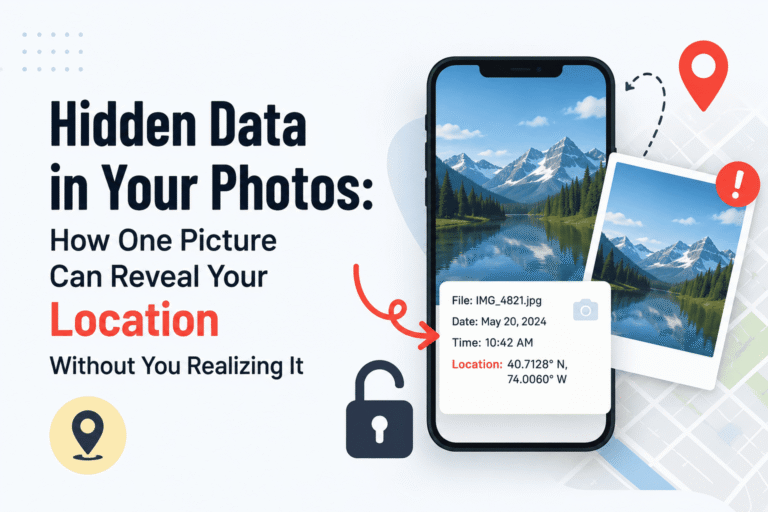
Location history is among the most telling sets of data that could ever be put together about you. Location data reveals where you live, where you work, which hospital or clinic you have gone to, which churches or mosques, and which political events. Location data is being sold by location data brokers, either with no names at all or researchers have shown time and again that anonymous location data can be de-anonymized just from patterns of movements.
The Federal Trade Commission has taken enforcement action against companies that sold precise location data without adequate consent. This isn’t theoretical risk.
How to Fix It
On iPhone: Go to Settings → Privacy & Security → Location Services. Scroll through every app. Any listed as “Always” should be changed to “While Using the App” at minimum. Shopping apps, social media, and games should be set to “Never.”
On Android: Go to Settings → Location → App Permissions. Look for any apps under “Allowed all the time” and switch them to “Allow only while using the app” or “Deny.”
Additionally, it is advised to enable the location indicator (arrow in your status bar) so that you may know in real-time whenever an app uses your GPS. iOS and Android both offer this; it won’t stop them from tracking you, but at least you’ll be aware of it.
2. Your Advertising ID — The Hidden Profile You Don’t Know Exists
There is always one common advertising identifier that is present in every smartphone at the level of the operating system. For iPhone, the identifier is named IDFA (Identifier for Advertisers). In an Android phone, it is named GAID (Google Advertising ID). These are activated and shared automatically from the very beginning.
This is the way through which the network tracks you when using other applications because there is no need to use your name or e-mail. If you use any recipe application, search something in the shopping app, or even go through any health article, everything is tracked through your advertising identifier.
The Electronic Frontier Foundation has documented how advertising identifiers flow through a supply chain of hundreds of companies — many of which you’ve never heard of — and how the resulting profiles are used beyond advertising for insurance research, employment screening, and fraud targeting.
Apple vs. Android: An Honest Comparison
| Feature | iPhone (iOS 14.5+) | Android 12+ |
|---|---|---|
| Opt-in required before sharing ID? | ✅ Yes (App Tracking Transparency) | ❌ No (opt-out model) |
| Can you delete the ID entirely? | Partial (can reset) | ✅ Yes (Android 12+) |
| Default state | Off unless user grants permission | On by default |
| Privacy improvement from changing this | Moderate (already restricted) | High |
How to Turn It Off
On iPhone: Go to Settings → Privacy & Security → Tracking and disable “Allow Apps to Request to Track.” Then go to Settings → Privacy & Security → Apple Advertising and turn off Personalized Ads.
On Android: Go to Settings → Google → Ads. On Android 12 and later, tap “Delete advertising ID.” On older versions, select “Opt out of Ads Personalization.” Deleting it entirely is more effective than opting out — it removes the ID rather than just flagging it.
Your apps continue to work normally. You still see ads — they’re just not personalized to your behavior. For most people, that’s a trade-off worth making instantly.
If you want to understand how ad targeting actually works on a deeper level, our article on how ad-targeting algorithms work behind the scenes walks through the full data pipeline.
3. Background App Refresh — Apps Running When You’re Not Looking
Background App Refresh Background App Refresh is a function designed to allow applications to refresh their content, even when they are not being used. It would mean that when you launch Twitter or a news app, the latest content would be ready for use. Sounds good in theory.
However, it also implies that applications would wake up and gather your data, including location, information about other apps that you have been using and behavioral data – and do it without any visible signs from the user side.
What Actually Uses Background Refresh Legitimately
- Email and messaging apps: Legitimate — they need to fetch new messages
- Navigation apps: Legitimate when in use for turn-by-turn
- Music or podcast apps: Reasonable for pre-downloading content
- Social media, games, shopping, news apps: Not necessary — they can load when you open them
How to Control It
On iPhone: Go to Settings → General → Background App Refresh. You can toggle it off entirely or, better, disable it selectively for apps that have no real reason to run in the background.
On Android: Go to Settings → Apps, select an app, then tap “Battery” and switch to “Restricted.” This prevents the app from running background processes. You can also go to Settings → Battery → Battery Optimization and apply this across multiple apps at once.
Disabling background refresh for non-essential apps typically improves battery life noticeably — often 10–20% better daily life for phones loaded with apps — which is a convenient side effect of a genuine privacy improvement.
4. Microphone Permissions — More Apps Have It Than You Think
This is the setting that generates the most anxiety — and sometimes the most dismissal. The reality is nuanced but genuinely worth addressing.
Listening constantly and passively to such apps (without any activation) will use up considerable battery power and bandwidth, and will be easily detected by security experts conducting app audits on a regular basis. There is no proof of any popular apps doing this. However, what we have clear proof of is that there are many apps which do have live microphone access, even if they don’t really require it, and they can pick up ambient sound cues rather than recording the entire sound.
The FTC’s consumer guidance on app permissions specifically recommends reviewing microphone access for any app that doesn’t have a clear functional need for it.
Which Apps Should Have Microphone Access
| App Type | Microphone Access Needed? | Recommended Setting |
|---|---|---|
| Voice/video calls (WhatsApp, FaceTime, Zoom) | Yes | Allow while using |
| Voice assistants (Siri, Google Assistant) | Yes | Allow (expected behavior) |
| Voice-to-text tools | Yes | Allow while using |
| Social media apps (Instagram, TikTok, Facebook) | Only for video recording | Allow while using — not always |
| Shopping, games, news, utilities | Rarely | Deny |
How to Review Microphone Permissions
On iPhone: Go to Settings → Privacy & Security → Microphone. You’ll see every app that has ever been granted microphone access. Revoke it for anything that doesn’t have a clear voice-recording function.
On Android: Go to Settings → Privacy → Permission Manager → Microphone. Review each app listed and set appropriately.
5. Bluetooth Left On All the Time — A Passive Tracking Surface
The tracking functions of Bluetooth go even beyond the familiar security flaws. Even without the active exploits, constant Bluetooth becomes an instrument of passive location tracking by means of Bluetooth beacon tracking in retail stores, shopping malls, airports, and stadiums.
The retailers use tiny devices known as beacons that work through Bluetooth technology and are placed all around the stores. Once your phone’s Bluetooth is activated, it starts talking to the beacons. And the apps having the permission to use the Bluetooth can track your movement from one aisle to another inside the store.
In addition to passive surveillance attacks, BlueBorne, which are Bluetooth vulnerabilities discovered by security analysts, proved that in certain situations, an attacker located near a device can silently infect it through Bluetooth without any user intervention. Although patches have been released, it serves as a lesson that an open wireless technology is an attack vector.
Practical Bluetooth Hygiene
- Turn Bluetooth off when you’re not using wireless headphones, speakers, or accessories.
- On iPhone: swiping up and tapping the Bluetooth tile only disables it until the next morning — it re-enables automatically. For a true persistent disable, go to Settings → Bluetooth → toggle off.
- Periodically go to your paired devices list and remove devices you no longer use. Old pairings can be used to identify your device.
- Review which apps have Bluetooth permission: Settings → Privacy & Security → Bluetooth (iPhone) or Settings → Apps → [App] → Permissions → Nearby Devices (Android).
6. Persistent Location in the Background via Apps You’ve Forgotten About
This deserves its own entry separate from Setting #1, because the specific problem here is apps you’ve forgotten you installed. Six-month-old travel apps. A retailer’s app you downloaded to get a discount code once. A food delivery app from a service you no longer use. These apps often retain “Always” location permission even after you stop using them — and continue to quietly report your location to their servers.
Security researchers sometimes call these “zombie permissions” — access rights that persist long after any active relationship with an app exists.
The Fix: A Quarterly Permission Audit
Set a reminder on your phone every three months to do a quick audit:
- Go to your location permissions screen (same path as Setting #1 above).
- For any app you don’t actively use, revoke all permissions — or uninstall the app entirely.
- Check your full installed app list at the same time. Apps you haven’t opened in 3+ months should be uninstalled unless there’s a specific reason to keep them.
- On Android, also check Settings → Apps → [App] → Permissions to see the full permission footprint of any app.
This is also a useful habit for catching permission re-grants. Some apps, after an update, will request permissions again — sometimes pre-selected as “Allow” if the permission was previously granted.
We cover this and related phone security habits in more depth in our article on dangerous default phone settings that most people never turn off.
7. Diagnostic Data and Analytics Sharing — The Overlooked One
This is the setting most people have never looked at and wouldn’t think to look for. Both Apple and Google collect “diagnostic and usage data” from your phone by default — crash reports, performance metrics, app usage frequency, and more. The stated purpose is product improvement.
What’s less clear is the full scope of what’s collected. Apple’s analytics data collection is extensive, and Apple’s own support documentation acknowledges it includes device usage data, app performance, and features used. Independent researchers have found that even with analytics sharing disabled, some baseline telemetry continues — but disabling it reduces the volume significantly.
It’s a low-stakes setting to change, but it takes 20 seconds and removes a data stream you likely didn’t know existed.
How to Turn It Off
On iPhone: Go to Settings → Privacy & Security → Analytics & Improvements. Turn off all toggles: Share iPhone Analytics, Share iCloud Analytics, Share with App Developers, and Improve Siri & Dictation.
On Android: Go to Settings → Google → Usage & Diagnostics and toggle it off. Also check Settings → System → Advanced → Usage & Diagnostics on some devices.
There is also a separate Google setting worth disabling: Settings → Google → Personalization → Web & App Activity. This controls whether Google records everything you search and every site you visit across its services. Turning it off (or going to myactivity.google.com to review and delete your history) is one of the more meaningful privacy actions Android users can take.
Putting It All Together: What Changes, What Doesn’t
The concern people have when they read a list like this is that turning things off will break their phone. It won’t. Here’s the honest picture:
| Setting Changed | What Stops Working | What Keeps Working Fine |
|---|---|---|
| Location → “While Using” instead of “Always” | Background GPS logging by apps | Maps, navigation, rideshare — all work normally |
| Advertising ID deleted/disabled | Personalized cross-app ad targeting | All apps function; ads become non-targeted |
| Background App Refresh off for non-essentials | Silent background data sync | Content loads when you open apps (small delay) |
| Microphone revoked for non-voice apps | In-app voice features for irrelevant apps | All core app functions; call/voice apps unaffected |
| Bluetooth off when idle | Automatic beacon tracking in stores | Headphones, speakers work when Bluetooth is on |
| Diagnostic data sharing off | Anonymous usage telemetry to Apple/Google | Everything — no visible change at all |
The functional trade-offs are minimal. The privacy improvements compound over time — because tracking systems build profiles gradually, and every month you’re not feeding them is a month of profile decay.
It’s also worth understanding how your browser contributes to tracking beyond your phone’s built-in systems. Our Complete Browser Privacy Guide covers the complementary steps to take on the browser side — together, the two create a meaningful reduction in your overall tracking footprint.
Alternatives: Tools That Help Automate This
If manually reviewing settings feels like too much upkeep, some tools can help:
- Apple’s Privacy Report (Safari): Shows which trackers each website attempted to contact and which were blocked. Found in Safari → Privacy Report.
- Google’s Privacy Checkup: A guided walkthrough of your Google account’s privacy settings at myaccount.google.com/privacycheckup. Takes about four minutes.
- A reputable VPN: Doesn’t stop app-level permission tracking but encrypts traffic on public Wi-Fi, protecting you from the network-level risks we’ve covered. Particularly useful given the risks of public Wi-Fi covered in our guide on public WiFi security risks.
- Privacy-focused browsers (Firefox Focus, Brave): Block cross-site trackers that operate alongside your advertising ID — a useful complement to the settings changes above.
- DNS-based ad blocking (AdGuard, NextDNS): Can block known ad-tracking domains at the network level before they reach your apps. More technical to set up but highly effective.
Pros and Cons of Tightening Your Phone’s Tracking Settings
| Pros | Cons |
|---|---|
| ✅ Significantly less data shared with advertisers and data brokers | ❌ Ads become less targeted (generic instead of personalized) |
| ✅ Measurable battery life improvement | ❌ Some apps load slightly slower on first open (no background refresh) |
| ✅ Reduced risk from Bluetooth and Wi-Fi attacks | ❌ Need to manually turn Bluetooth on when using wireless devices |
| ✅ Location history stops being built and sold | ❌ Requires a one-time audit (~15 minutes total) |
| ✅ Reduced profile building by data brokers | ❌ Needs to be re-checked after major app updates |
✅ Final Verdict
These 7 settings weren’t turned on for your benefit — they were turned on because they feed advertising systems, analytics platforms, and data broker pipelines that generate money. Turning them off costs you nothing meaningful in day-to-day functionality.
The right order to tackle these: start with location permissions (highest impact), then Advertising ID (easiest to disable, big profile-building impact), then Background App Refresh (immediate battery improvement). The rest can be done in the same sitting or spread over a week.
Time required: ~15 minutes total. Privacy improvement: significant and lasting.
Frequently Asked Questions
Does turning off location permissions mean apps stop working?
No. Switching from “Always” to “While Using the App” still allows every app to access your location normally while you’re using it. Navigation, rideshare, food delivery — all work exactly as expected. What stops is the background logging when the app isn’t open.
Can apps track me even after I change these settings?
Some tracking continues at levels that individual settings can’t block — your mobile carrier knows your approximate location from cell towers, for example. But the settings in this article address the most actionable and high-volume tracking vectors. Reducing your advertising ID exposure, background location access, and microphone permissions makes a meaningful, measurable difference in how much data is being collected and by whom.
Does deleting the advertising ID permanently remove my tracking profile?
No — existing profiles at data broker companies aren’t deleted when you reset or delete your advertising ID. What it does is break the link going forward, so no new data gets added to that profile. Over time (typically 6–12 months), existing profiles become stale and less valuable. It’s not an instant reset, but it is a meaningful interruption.
Are iPhones really more private than Android phones?
For the specific settings in this article, iOS has a meaningful structural advantage: App Tracking Transparency (introduced in iOS 14.5) requires apps to ask permission before accessing your advertising ID, and most users say no. Android’s equivalent controls rely more on user-initiated opt-out, which fewer people do. Both platforms have significant tracking infrastructure, but iPhone’s opt-in model for advertising ID is a real difference.
How do I know if an app is actively tracking me right now?
On iPhone, the small orange dot in the status bar indicates microphone use; a green dot indicates camera use. For location, the arrow icon appears when any app reads your GPS. On Android, the camera and microphone indicator appears in the top-right corner of the screen (Android 12+). For a deeper picture of which apps have accessed which sensors, check Settings → Privacy → Privacy Dashboard on Android or Settings → Privacy & Security → App Privacy Report on iPhone.
Should I be worried about voice assistants like Siri and Google Assistant?
Siri and Google Assistant listen for their wake word (“Hey Siri,” “Ok Google”) locally on the device, without sending audio to servers. However, voice recordings triggered by false activations have been reviewed by human contractors at both Apple and Google in the past — both companies have since changed these practices in response to public scrutiny, but it’s worth being aware. You can review and delete your Siri history at Settings → Siri & Search → Siri History, and your Google Assistant history at myactivity.google.com.
Is it worth using a VPN to stop app tracking?
A VPN encrypts your internet traffic, which protects you on public Wi-Fi from network-level eavesdropping. But it doesn’t stop apps from tracking you through the permissions described in this article — location access, advertising IDs, and background data sharing happen at the app level, above the network layer. A VPN is a useful complement, not a substitute, for the settings changes here. For more on when a VPN actually helps, our guide on public Wi-Fi security risks explains the distinction clearly.