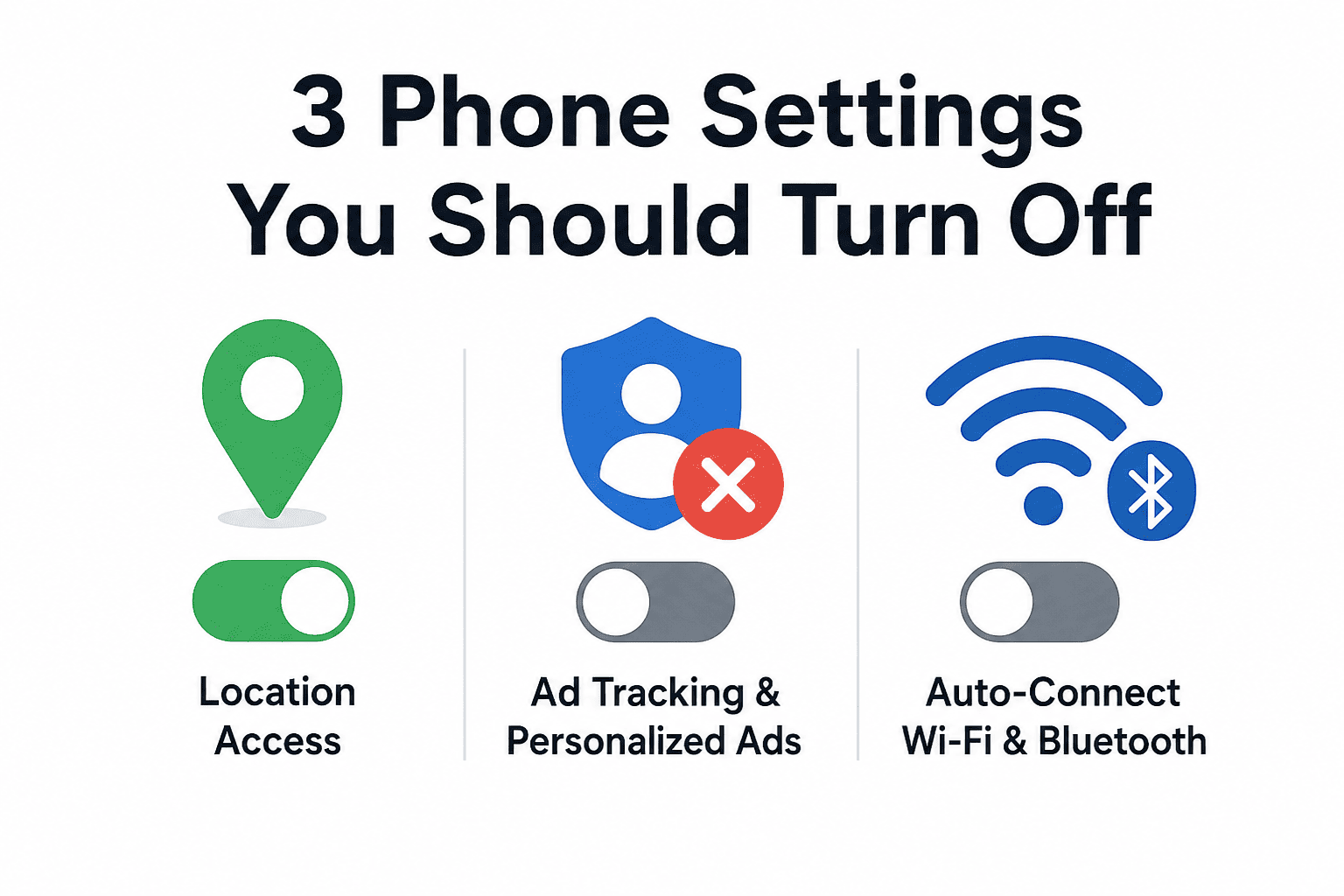
Answer in Brief : The three most dangerous default settings that are currently enabled on almost all smartphones include: location permissions, ad-tracking/ personal advertising, and automatic connections with Wi-Fi and Bluetooth. The thing is that all three settings are enabled by default both by device manufacturers and app creators, and people rarely ever bother changing them. However, switching off these settings can take just five minutes of your time and will greatly decrease the chances of your smartphone being used against you for various purposes.
And here’s something you might want to keep in mind: your phone was designed in such a way that some settings were enabled right out of the box to benefit the advertisers, app developers, and, in the worst-case scenario, even criminals. There are no accidents or bugs involved; everything is done on purpose.
This isn’t a “tinfoil hat” article. These aren’t theoretical risks buried in a 200-page security white paper. They’re three specific settings, live on your phone right now, that privacy researchers, cybersecurity professionals, and the Federal Trade Commission have repeatedly flagged as real concerns for everyday users.
We’ll go through each one in plain language — what it does, why it’s dangerous, and the exact steps to turn it off on both Android and iPhone.
And if you want to understand the broader picture of how your data gets harvested across your devices, our guide on stopping apps from tracking you is a good companion read.
Setting #1: “Always On” Location Access for Apps
This is arguably the most common and least understood privacy vulnerability on your phone. Anytime you download an app, whether it be for food delivery, weather, or shopping, it asks for location permissions. You click “Allow” because the app requires access to your location while using the app at the time of use. However, what you may not know is that a lot of these default to “Always,” not “While Using.”
“All the time” means that the app is allowed to access your GPS data while the app is in the background. Even when the screen is off. Even when you forget about the existence of the app.
Why This Is a Bigger Problem Than It Sounds
Your location history is an intimate portrait of your life. It knows where you sleep (your home), where you work, which medical clinics you’ve visited, which places of worship, which political events. That data gets bundled, sold, and re-sold to data brokers.
The New York Times investigated location data brokers and found that a single “anonymous” dataset contained the precise movements of over 12 million Americans — and that truly anonymizing location data is nearly impossible, because patterns of movement identify individuals even without a name attached.
Beyond data brokers, always-on location also drains your battery faster, since the GPS radio fires up periodically to report your position even when no app is in the foreground.
How to Fix It
On iPhone (iOS 14+):
- Go to Settings → Privacy & Security → Location Services
- Scroll through your app list. Any app showing “Always” is reporting your location in the background.
- Tap each one and switch it to “While Using the App” — or “Never” if the app has no real reason to know where you are at all.
- For the most useful apps (Maps, Uber), “While Using” is the right choice. For shopping apps? Set to “Never.”
On Android:
- Go to Settings → Location → App Permissions (exact path varies by manufacturer)
- Look for apps listed under “Allowed all the time”
- Tap each and change to “Allow only while using the app” or “Deny”
Which Apps Are the Worst Offenders?
| App Type | Default They Request | What You Actually Need |
|---|---|---|
| Navigation (Google Maps, Waze) | Always | While Using |
| Ride-hailing (Uber, Lyft) | Always | While Using |
| Food Delivery (DoorDash, etc.) | Always | While Using |
| Retail / Shopping | Always | Never (or While Using at most) |
| Social Media | Always | Never |
| Games | While Using / Always | Never |
| Weather Apps | Always | While Using (or manual city entry) |
The “While Using” setting still lets apps do their job — it just means they stop watching you the moment you switch away from them. That’s a reasonable trade-off for every app on this list.
Setting #2: Ad Tracking and Personalized Advertising
Every major phone platform — iOS and Android — assigns your device a unique advertising identifier. On iPhone it’s called the IDFA (Identifier for Advertisers). On Android it’s the GAID (Google Advertising ID). By default, both are active and shared with every app you install that requests it.
This identifier is how apps and ad networks build a profile of you across different services. You search for flights on one app, and suddenly you’re seeing flight ads on a completely unrelated app. That’s your advertising ID doing exactly what it was designed to do.
Why This Goes Beyond Annoying Ads
The advertising profile built around your IDFA or GAID isn’t just used for selling you shoes. It’s used by data brokers, insurance companies researching claimants, employers (in some cases), and yes — scammers who buy targeted lists of people who have shown interest in specific health, financial, or personal struggles.
The Electronic Frontier Foundation has documented how advertising IDs enable surveillance at scale, and how the data they generate flows through a supply chain of hundreds of companies that most users have never heard of.
Apple vs. Google: A Real Difference Here
It’s worth giving Apple some credit: since iOS 14.5, apps are required to ask for permission before accessing your IDFA — a change called App Tracking Transparency (ATT). Most users, when asked, say no. This was a meaningful improvement.
Android’s equivalent controls are improving but still lag behind. Google’s system relies more on opt-out rather than opt-in, though recent Android versions (12 and later) have made it easier to reset or delete your advertising ID entirely.
How to Turn It Off
On iPhone:
- Go to Settings → Privacy & Security → Tracking
- Turn off “Allow Apps to Request to Track”
- Any app that asked previously will have its permission revoked.
- You can also go to Settings → Privacy & Security → Apple Advertising and turn off Personalized Ads
On Android (varies by version):
- Go to Settings → Google → Ads
- Tap “Delete advertising ID” (Android 12+) — this is the most effective option
- On older versions: tap “Opt out of Ads Personalization”
- You can also reset your Advertising ID here, which breaks the continuity of your existing profile
Pros and Cons of Disabling Ad Tracking
| Factor | Tracking ON | Tracking OFF |
|---|---|---|
| Ad relevance | Higher (ads match interests) | Lower (generic ads) |
| Data privacy | Low | Significantly better |
| Data broker exposure | High | Reduced |
| App functionality | No change | No change |
| Battery / performance | Slight background drain | Marginal improvement |
The apps still work. You still see ads. You just see random ads instead of targeted ones — which is a trade-off most privacy-conscious users are happy to make. For a deeper look at how online tracking works in general, check out our article on digital surveillance in public spaces.
Setting #3: Auto-Connect for Wi-Fi and Bluetooth
This one is the most technically dangerous of the three — and the one most people dismiss as inconvenient to change.
By default, both iPhone and Android are set to automatically join “known” Wi-Fi networks and to keep Bluetooth on and discoverable at all times. This sounds harmless — your phone reconnects to your home Wi-Fi automatically, great. But the risks hiding inside this convenience are real.
The “Evil Twin” Wi-Fi Attack
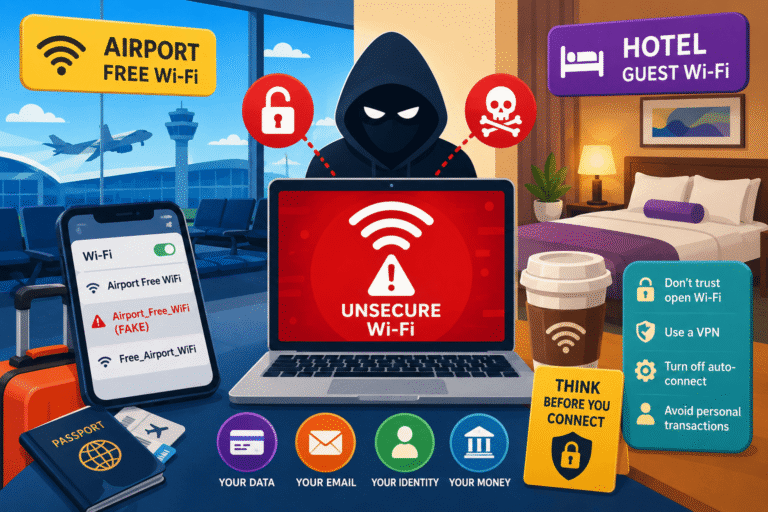
When your phone auto-connects to Wi-Fi, it does so based on network name (SSID). Any network named “Starbucks WiFi” or “Airport_Free_WiFi” — even one set up maliciously in a coffee shop — can be joined automatically if your phone has connected to a similarly-named network before.
This technique is called an evil twin attack. The attacker creates a rogue hotspot with a common name, your phone connects silently, and now all your unencrypted traffic — apps, browsing, even login requests that aren’t HTTPS — passes through their device first. The Cybersecurity and Infrastructure Security Agency (CISA) explicitly warns about this type of attack in their public Wi-Fi guidance.
Bluetooth: The Bluejacking and BlueBorne Problems
Bluetooth is equally worth thinking about. Keeping Bluetooth always-on and discoverable exposes your phone to a class of attacks collectively known as BlueBorne — vulnerabilities in the Bluetooth protocol that have allowed attackers within range (up to 30 feet) to silently take over devices without any user interaction. No pairing required. No prompt on your screen.
Security research firm Armis documented BlueBorne and found it affected over 5 billion devices. While patches have since been issued, the fundamental principle holds: an attack surface you don’t need open shouldn’t be open.
How to Fix Both
Wi-Fi Auto-Connect — iPhone:
- Go to Settings → Wi-Fi
- Tap the ⓘ icon next to any saved network you don’t fully trust (hotel networks, airport networks, café chains)
- Turn off “Auto-Join”
- Also: go to Settings → Wi-Fi → Ask to Join Networks and set it to “Ask” instead of “Automatic”
Wi-Fi Auto-Connect — Android:
- Go to Settings → Wi-Fi → Saved Networks
- Tap each public/untrusted network and select “Forget” or disable auto-connect
- Alternatively: Settings → Wi-Fi → Wi-Fi Preferences → Auto-connect (exact path varies by device)
Bluetooth — Both Platforms:
- Turn Bluetooth off entirely from the Control Center / Quick Settings when you’re not using it
- Note: on iPhone, swiping down and tapping the Bluetooth icon only disables it temporarily (until next morning or next restart). For a full disable: Settings → Bluetooth → toggle off
- Periodically go to Settings → Bluetooth and remove any paired devices you no longer use
What Stays Safe Even With These Settings Changed
Worth being clear: turning off auto-connect doesn’t mean your phone stops connecting to networks. It just means it asks you first. Your home Wi-Fi, your work network, your trusted paired headphones — all of these still connect when you’re in range and choose to connect. You just lose the silent auto-join behavior for unfamiliar or public networks.
Bonus: Two More Settings Worth Checking Right Now
These didn’t make the top three, but they’re worth a two-minute check while you’re already in your Settings app.
Diagnostic Data Sharing
Both Apple and Google collect “crash reports” and “diagnostic data” from your phone by default. In theory, this helps them fix bugs. In practice, the scope of what’s collected is broad and not always clearly disclosed. You can turn this off at Settings → Privacy & Security → Analytics & Improvements (iPhone) or Settings → Google → Usage & Diagnostics (Android).
Lock Screen Notification Previews
By default, your notification content — message text, email subjects, banking alerts — shows on your lock screen for anyone who picks up your phone to see. Change this to “When Unlocked” at Settings → Notifications → Show Previews (iPhone) or in Settings → Notifications → Lock Screen Notifications (Android). This is especially important if you ever leave your phone on a desk or table.
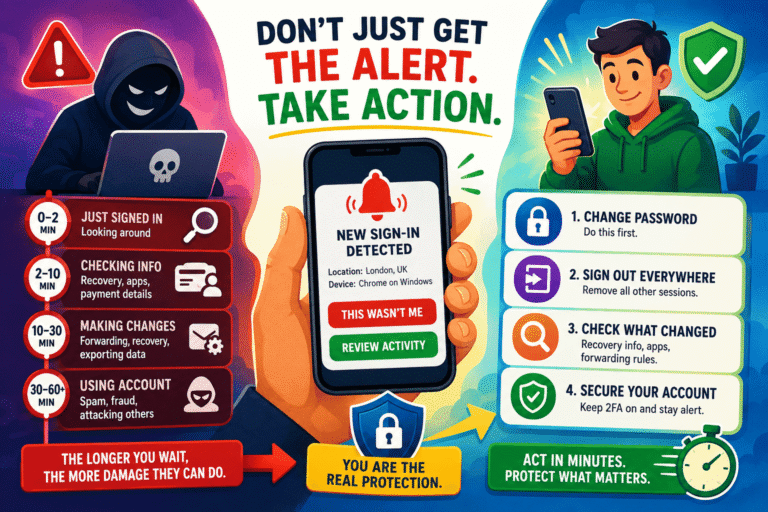
If you’ve also been curious about what other habits cybersecurity professionals recommend for everyday users, our article on login alert habits covers the small but effective practices that make a real difference.
Alternatives to Manual Settings Changes
If going through each setting manually feels daunting, here are some tools and approaches that can help:
- Privacy checkups built into the OS: Both Apple’s Privacy Report feature (in Settings → Privacy & Security → Safety Check) and Google’s Privacy Checkup walk you through the most important settings in a guided way.
- VPN for Wi-Fi protection: If you regularly use public Wi-Fi and don’t want to manually manage saved networks, a reputable VPN encrypts your traffic even on rogue hotspots. This doesn’t replace changing auto-connect settings, but it does add a meaningful layer of protection.
- Privacy-focused browsers: Apps like Firefox Focus or Brave block cross-site trackers that complement your advertising ID — reducing tracking even when the IDFA/GAID is technically active.
- Regular permission audits: Set a calendar reminder once every three months to review your location and data permissions. Apps update quietly and sometimes re-request permissions they previously didn’t ask for.
Final Verdict
The three areas explored in this piece, constant access to your location, ads tracking, and automatic connection to the Wi-Fi and Bluetooth, were all enabled by default because they provide benefit to the developers of such technologies and the advertisers who pay for them—not to you.
There is no cost in terms of functionality involved in changing them. Your applications will function just fine, your phone will connect. You just won’t be sharing your life with systems you never gave permission to.
Time investment to fix all three: About 8–10 minutes.
Privacy improvement: Significant, especially over the next 6–12 months as existing tracking profiles stop getting updated.
Recommended action: Do the location permissions audit first — it takes five minutes and has the highest immediate impact.
Frequently Asked Questions
Will turning off these settings break my apps?
No. Apps that genuinely need your location (Maps, navigation, rideshare) will still get it when you’re actively using them — “While Using” permission is sufficient. The features that break are things you didn’t want anyway: background location logging, cross-app ad tracking, and silent network auto-connection.
Does airplane mode do the same thing as manually disabling Bluetooth and Wi-Fi?
Yes, but it also disables your cellular connection, so it’s not a practical everyday solution. The goal here is surgical: leave the things you need on, and turn off the things you don’t. Toggle Bluetooth off when you’re not using headphones or speakers. It takes two seconds.
If I delete my advertising ID, will I stop seeing ads?
No. You’ll still see ads — they’ll just be non-targeted (random) ads rather than personalized ones. Some apps may show you the same generic ad repeatedly, which is mildly annoying but entirely harmless.
Is iPhone more private than Android by default?
For the settings in this article, yes — iOS 14.5’s App Tracking Transparency is a meaningful structural improvement that Android’s system doesn’t fully match. That said, both platforms have significant tracking infrastructure built in, and both benefit from the changes described here.
How often should I review my phone’s privacy settings?
Once every three months is a reasonable habit. Apps update silently, sometimes requesting new permissions they didn’t originally ask for. New apps get installed and forgotten. A quarterly review takes about ten minutes and catches most issues before they become long-term data leaks.
What’s the single most important change to make first?
Location permissions. Go to your location settings right now and review every app that has “Always” access. It takes five minutes, the privacy impact is immediate, and the battery benefit is a nice bonus.