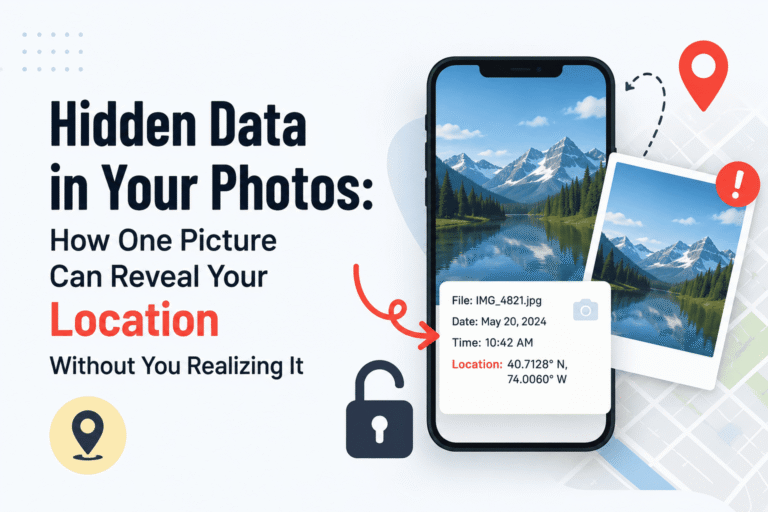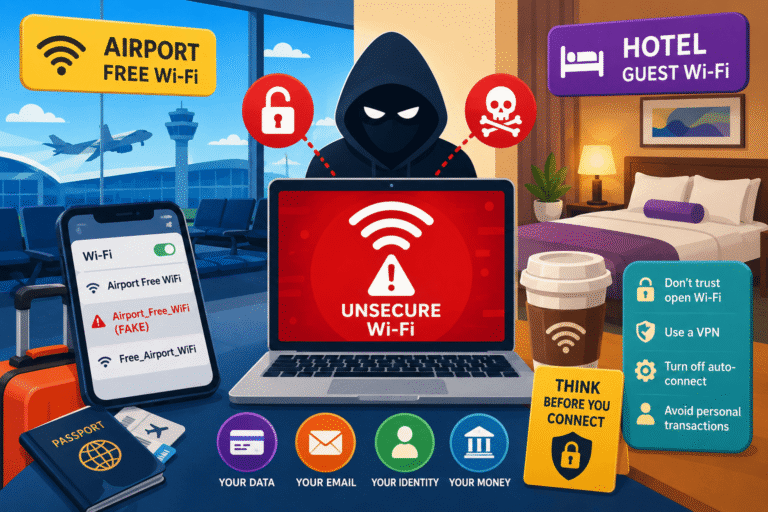
Every time you click open a tab, there’s an observer. Nothing flashy, nothing overt – just quiet, unyielding observation at a level of detail beyond belief. The advertisers, the data aggregators, the analysts and the browsers themselves are all capturing signals about your identity, preferences and behavior.
This is a guide to reversing that trend. No computer science background needed. Not even any paranoid delusions. Just concrete steps that will make a difference, regardless of what web browser you use.
How Do I Protect My Browser Privacy?
Use a privacy-protecting web browser (Firefox or Brave), install the uBlock Origin extension, use DuckDuckGo as your search engine by default, block all third-party cookies, and purge your browsing data frequently. This alone will reduce 90 percent of the tracking you undergo each day.
For a deeper understanding of exactly what your browser collects before you change anything, read our article on what your browser knows about you — it’s more alarming than most people expect.
Why Browser Privacy Matters More Than Most People Think
It is easy to brush off these concerns and say, “I don’t have anything to hide.” Browser privacy is not about hiding things but about control. Whose interests do you serve when it comes to your attention, fears, health research, and late-night browsing activities? The current answer is: companies that you are completely unaware of.
Third-party trackers stalk your movements everywhere you go on the Internet. Ad networks create psychological profiles and make predictions about your actions with higher accuracy than your best friends. All of this information is not stored with one company and passed around, leading to discrimination, intrusive marketing, health insurance policies, and even documented cases of physical violence.
Privacy in a web browser is the bedrock upon which all other aspects of online safety are built. Things like password management tools, virtual private networks, two-factor authentication depend on it. It deserves an article, not a to-do list.
Step 1: Choose the Right Browser
The browser you use is the single biggest privacy decision you make online. It determines which trackers are blocked by default, how your data is handled, and how much work you’ll need to do to stay private.
Browser Privacy Comparison
| Browser | Default Tracking Protection | Fingerprinting Resistance | Data Collection by Developer | Best For |
|---|---|---|---|---|
| Brave | 🟢 Strong (blocks ads + trackers) | 🟢 Built-in | Minimal | Users who want privacy out of the box |
| Firefox | 🟡 Moderate (enhanced mode available) | 🟡 With settings tweak | Low | Users who want control + extensions |
| Safari | 🟡 Moderate (ITP active) | 🟡 Partial | Low (Apple ecosystem) | Apple device users who don’t want to switch |
| Chrome | 🔴 Weak by default | 🔴 None | High (Google collects extensively) | Not recommended for privacy |
| Edge | 🟡 Moderate (with Strict mode) | 🔴 Limited | Moderate (Microsoft telemetry) | Windows users who won’t leave Microsoft |
| Tor Browser | 🟢 Maximum | 🟢 Maximum | None | High-risk users, journalists, activists |
The practical recommendation: Firefox with enhanced tracking protection enabled, or Brave if you want the strongest default settings without configuration. Both are free, fast, and work with the same extensions you already know.
Chrome isn’t a privacy browser. It’s an advertising platform that lets you browse the web. That’s not an opinion — it’s a business model baked into the architecture. The Mozilla Foundation publishes detailed documentation on what a privacy-respecting browser actually looks like under the hood.
Step 2: Configure Your Privacy Settings
Switching to a better browser is step one. Configuring it properly is step two. Even Brave and Firefox ship with some privacy-unfriendly defaults to maintain compatibility with common websites. Here’s what to change.
Firefox Privacy Settings Worth Changing
- Enhanced Tracking Protection → Strict mode: Settings → Privacy & Security → Enhanced Tracking Protection → Strict. This blocks more trackers and fingerprinting scripts than the default “Standard” setting.
- Send websites a “Do Not Track” signal: Enable it. Most sites ignore it, but it costs nothing and some honor it.
- Block cryptominers and fingerprinters: Both options are in the same Privacy & Security panel — check both boxes.
- Disable Firefox telemetry: Scroll down to “Firefox Data Collection and Use” and uncheck all boxes. This stops Firefox itself from sending usage data back to Mozilla.
- Set HTTPS-Only Mode: Under Privacy & Security, enable HTTPS-Only Mode for all windows. Your browser will warn you before loading any unencrypted page.
Chrome Users: Minimal Damage Control
If you’re sticking with Chrome for now, at least do this:
- Go to Settings → Privacy and Security → Third-party cookies → Block third-party cookies
- Enable “Always use secure connections”
- Turn off “Help improve Chrome’s features and performance” (this sends usage data to Google)
- Review Site Settings and revoke unnecessary permissions for location, camera, microphone, and notifications
These changes help at the margins. But Chrome’s core data-sharing relationship with Google’s advertising infrastructure isn’t something you can opt out of through settings — that’s architectural.
Step 3: Block Trackers and Ads the Right Way
The most of tracking that occurs while you browse does not occur as a result of the sites that you are browsing; it is a result of third party script that is loaded by the site that you visit. A news article can cause between 40 and 80 tracking requests to occur in the background without your knowledge.
uBlock Origin: The Best Free Privacy Tool Available
Install uBlock Origin on Firefox or Chrome. It’s open source, free, maintained by a single independent developer, and consistently rated as the most effective ad and tracker blocker available. It uses virtually no memory, doesn’t slow down page loads, and blocks the vast majority of fingerprinting scripts alongside ads.
After installing it, enable these extra filter lists:
- EasyPrivacy (additional tracker blocking)
- AdGuard Tracking Protection
- Peter Lowe’s Ad and tracking server list
These are available under uBlock Origin’s filter list settings. Adding them takes two minutes and meaningfully expands what it blocks.
A note on Manifest V3: Google has been limiting ad blocker capabilities in Chrome through its Manifest V3 extension platform changes. Firefox is not subject to these restrictions. This is another reason Firefox is the better long-term privacy browser — your extensions remain fully effective.
What About Privacy Badger, Ghostery, and Others?
Privacy Badger (by the Electronic Frontier Foundation) is a legitimate tool that learns which trackers to block based on behavior. It’s a good complement to uBlock Origin rather than a replacement. Ghostery has gone through ownership changes and now has its own data monetization model — approach with caution. The simple answer: uBlock Origin alone handles 90% of what you need.
Step 4: Manage Cookies Properly
Cookies have become a kind of internet folklore — everyone knows they exist, most people just click “Accept All” without thinking, and very few understand what they’re actually agreeing to.
What the Different Types Actually Do
| Cookie Type | What It Does | Should You Block It? |
|---|---|---|
| First-party cookies | Keeps you logged in, remembers preferences on a site you’re using | No — these are useful and mostly harmless |
| Third-party cookies | Tracks you across multiple websites for advertising profiles | Yes — block these immediately |
| Session cookies | Temporary, deleted when you close the browser | Generally fine |
| Persistent cookies | Stay on your device for weeks or months | Review and clear regularly |
| Supercookies / Zombie cookies | Reconstruct themselves after deletion using local storage, ETags, or other tricks | Block with uBlock Origin + Clear-browsing-data regularly |
How to Clear Cookies Without Logging Out of Everything
Most browsers allow you to delete cookies for certain websites without deleting your whole browsing history. In Chrome: Settings -> Privacy and Security -> See all site data and permissions -> Find sites and delete. In Firefox: Settings -> Privacy & Security -> Cookies and Site Data -> Manage Data.
Another option would be to have your browser automatically delete cookies each time the window closes. For Firefox: Privacy & Security -> “Delete cookies and site data when Firefox is closed”. This is a good setting as your device will stay clean; however, you will have to log in to sites more often.
The “Accept All” button on cookie banners is legally required to be just as easy to find as “Reject All” under GDPR rules — but many sites bury the reject option on purpose. Under GDPR guidance, you have the right to reject non-essential cookies without being denied access to the service. Use it.
Step 5: Switch to a Private Search Engine
Approximately 8.5 billion searches go through Google daily. All of them connected to a Google account or even a persistent identifier assigned to your browser add up to the same advertisement system. Whatever your fears, worries about your physical or psychological health, love life, money, or politics is, all that becomes the commercial profile of your data.
Changing the search engine is one of the most effective steps you could take at no cost to search efficiency.
Best Privacy-Focused Search Engines
- DuckDuckGo — No tracking, no profile building, results sourced from Bing and its own crawler. Excellent for most everyday searches. Has a browser app too.
- Brave Search — Independent search index (not just Bing repackaged), no tracking, transparent about how results are ranked. Growing quickly in quality.
- Startpage — Returns Google results without passing your identity to Google. Good choice if you genuinely need Google-quality results privately.
- Kagi — Paid service ($5/month) with no advertising model at all. Excellent search quality without any incentive to profile you. Worth it for heavy users.
To change your default: in Firefox, go to Settings → Search → Default Search Engine. In Chrome, Settings → Search engine. On mobile, the DuckDuckGo browser app handles this automatically.
Step 6: Manage Browser Permissions
Any website can request permission from your browser to access your location, camera, microphone, clipboard, notifications, and other data types. However, most users just agree without much thought and never go back to change that decision. The result is that over time you accumulate a bunch of permissions for numerous websites that you have visited.
Permissions Worth Auditing Right Now
- Location: Almost no website genuinely needs your precise GPS location. “Use current location” on a map site is the rare legitimate use. Revoke it everywhere else.
- Notifications: News sites, deal aggregators, and social platforms push notifications to keep you coming back. Unless you actively use a site’s notifications, deny or revoke.
- Camera and Microphone: Should only be granted to video calling tools (Zoom, Meet, etc.). Everything else should be blocked by default.
- Clipboard: Some sites read your clipboard content — which may contain passwords, addresses, or sensitive data you just copied. Block this permission broadly.
In Chrome: Settings → Privacy and Security → Site Settings. In Firefox: Settings → Privacy & Security → Permissions. Go through each permission category and revoke access from anything that doesn’t have a clear, active reason for having it.
On your phone, this matters too. If you’re still running dangerous default settings on your device alongside weak browser settings, you’re leaving a large gap in your privacy posture. Our article on the three phone settings that shouldn’t be on covers the mobile side of this equation in detail.
Step 7: The Best Privacy Extensions (And Which to Skip)
Extensions Worth Installing
- uBlock Origin — Already covered above. The non-negotiable first install.
- Privacy Badger (EFF) — Behavioral tracker blocker that learns as you browse. Good companion to uBlock Origin.
- Cookie AutoDelete — Automatically deletes cookies from sites you’ve stopped visiting, keeping your cookie jar clean without manual effort.
- LocalCDN or Decentraleyes — Intercepts requests to large CDN servers (Google Fonts, jQuery CDN) and serves the files locally. Stops these providers from tracking which sites you visit.
- Firefox Multi-Account Containers (Firefox only) — Isolates your browsing activity by context. Social media in one container, banking in another, shopping in a third. Trackers can’t link your sessions across them.
Extensions to Avoid
| Extension | Why to Skip It |
|---|---|
| Ghostery | Owned by an advertising company; monetizes user data |
| Hola VPN | Sells users’ bandwidth as a proxy network — deeply problematic |
| Any “free VPN” extension | Free VPN extensions almost universally log and sell your data |
| Toolbar add-ons (shopping, weather, etc.) | These are data collection tools dressed as utilities |
| Browser extensions with unclear ownership | Extensions acquired by unknown buyers have turned into spyware overnight |
The rule of thumb: fewer extensions is generally better for privacy. Every extension you install gets access to your browsing data. Only install from developers with verified identities and published source code.
Step 8: Use a VPN — But Understand What It Does and Doesn’t Do
A VPN (Virtual Private Network) encrypts your internet traffic and hides your IP address from the websites you visit. It’s genuinely useful for specific scenarios: public Wi-Fi, bypassing geographic restrictions, and hiding your activity from your internet service provider.
But a VPN is not a privacy silver bullet. It doesn’t stop cookie tracking. It doesn’t prevent browser fingerprinting. It doesn’t hide you from sites you’re logged into. And a bad VPN can be worse than no VPN at all — because now a third party has your entire browsing history.
The risks of public WiFi are real and underestimated — on open networks, a basic tool can intercept your unencrypted traffic in minutes. A VPN fully addresses that specific threat. For general browser privacy, though, it’s one layer among several, not a complete solution.
When choosing a VPN, look for: independently audited no-log policies, open-source clients, and transparent ownership. The Privacy Guides VPN recommendations page maintains a vetted shortlist based on these criteria.
Step 9: The Forgotten Privacy Settings Most People Never Touch
These get missed in most guides because they’re buried in menus — but each one addresses a real tracking vector.
DNS Over HTTPS (DoH)
Your DNS queries — the “look up this website” requests your browser sends constantly — are transmitted unencrypted by default. This means your ISP, anyone on your local network, and any network operator between you and the DNS server can see every domain you visit, even when the page content is encrypted with HTTPS.
Enable DNS over HTTPS in Firefox: Settings → Privacy & Security → scroll to DNS over HTTPS → Enable (Max Protection). Use Cloudflare or NextDNS as the provider. In Chrome: Settings → Privacy and Security → Security → Use secure DNS.
WebRTC Leak Protection
WebRTC is a browser technology used for video calls and real-time communication. It has a well-documented behavior of leaking your real IP address even when you’re using a VPN. To disable it in Firefox, type about:config in the address bar, search for media.peerconnection.enabled, and set it to false. In Chrome, this requires an extension (WebRTC Leak Prevent).
Autofill and Saved Passwords
Browser-based password managers are convenient but centralized. If your browser account is compromised, every saved password goes with it. Consider moving to a dedicated password manager — Bitwarden is free, open source, and widely audited. It also avoids the scenario where your passwords are stored in a Google or Apple account that could be subject to law enforcement data requests. Strong password habits are the backbone of account security — our article on the one password habit that makes hackers give up covers the behavioral dimension well.
Sync Settings
Syncing your browser across devices is convenient. It also means your browsing history, bookmarks, saved passwords, and open tabs are stored on someone else’s server. If you use Firefox Sync, your data is encrypted end-to-end before it leaves your device. If you use Chrome Sync, Google can access it. Know the difference before you enable sync.
The Privacy Extension Pros and Cons
✅ Pros of a Privacy-Hardened Browser Setup
- Pages often load faster without tracker and ad scripts running
- Dramatically reduces the commercial data profile built about you
- Reduces exposure to malvertising (malware delivered through ad networks)
- Protects sensitive searches (health, financial, legal) from data brokers
- Most steps are free and take under an hour to implement
❌ Cons and Trade-offs to Expect
- Some websites break when aggressive tracker blocking is enabled — whitelisting specific sites is occasionally required
- Cookie deletion means re-logging in more often
- A few sites detect ad blockers and ask you to disable them
- Multi-account containers add a small layer of complexity to your daily workflow
- No setup eliminates all tracking — fingerprinting in particular is very difficult to defeat completely
What About Mobile Browsers?
Most people do half their browsing on a phone, and most phone browsers have weaker default privacy protections than their desktop equivalents. A few specific recommendations:
- Firefox for Android — The only mobile browser that supports the full uBlock Origin extension. This alone makes it the best Android privacy browser.
- Brave for iOS and Android — Strong default blocking, fast, and doesn’t require extension configuration.
- Safari on iOS — Better than Chrome on iOS, especially with Intelligent Tracking Prevention and the option to hide your IP from trackers in Settings → Safari → Privacy & Security.
- DuckDuckGo Browser — Simple, fast, and includes a “Fire Button” that wipes all tabs and browsing data in one tap.
Pair any mobile browser setup with a review of your phone’s app-level permissions. Many apps access the same data as your browser — and often with fewer controls available. The FTC’s consumer privacy guidance is a useful reference for understanding your rights around app data collection.
🏆 Final Verdict
The blunt truth: Perfect privacy in browsers isn’t possible, but improved privacy is definitely possible within 30 minutes of setup time. The tracking economy is huge, advanced, and tightly integrated into the structure of most of the web. However, this doesn’t mean that you must beat the system completely in order to enjoy the benefits of resisting.
Use Firefox or Brave. Use uBlock Origin. Block third-party cookies. Use DuckDuckGo as your search engine by default. Use HTTPS Everywhere and DNS over HTTPS. Check your permissions settings. Doing those six things will eliminate most of the passive and opportunistic tracking experienced by most individuals.
Beyond that, the law is slowly catching up. The GDPR gives EU residents meaningful rights. US state laws are expanding. But until enforcement matches the scale of the problem, the best protection is your own setup — and the knowledge to use it.
Privacy score of the average unprotected browser setup: 2/10.
Privacy score of this guide’s recommendations fully applied: 7–8/10.
The gap between those two numbers is worth your afternoon.
❓ Frequently Asked Questions
Does private/incognito mode protect my privacy?
No — not in the way most people assume. Incognito mode stops your browser from saving history, cookies, and form data on your device. It does not hide you from the websites you visit, your ISP, your employer’s network, or any tracking scripts on the pages you load. It’s useful for keeping local device history clean, nothing more.
Is uBlock Origin safe to use?
Yes. uBlock Origin is open source, has been independently reviewed by security researchers, and is maintained transparently on GitHub. It does not sell data or have any commercial interests. It’s one of the most widely trusted browser extensions in the world.
Can websites detect that I’m using an ad blocker?
Yes, some can. Some sites use anti-adblock scripts that detect when their ads aren’t loading and prompt you to disable your blocker. How you respond is your choice — you can whitelist sites you genuinely want to support, or use uBlock Origin’s anti-anti-adblock filters to bypass the prompts.
Will blocking trackers break websites?
Occasionally. Strict tracking protection in Firefox can break login functionality or certain site features on a small number of sites. The fix is simple: click the shield icon in the address bar and select “Turn off Enhanced Tracking Protection for this site.” uBlock Origin has a similar per-site toggle.
Is DuckDuckGo actually good for search?
For the vast majority of everyday searches, yes. DuckDuckGo’s results are good enough that most users stop noticing a difference within a few days. For very specific technical or local searches, you can type !g before your query in DuckDuckGo to send that specific search to Google privately via a redirect — without Google building a profile from it.
Do I need both a VPN and a privacy browser?
They address different threats. A privacy-hardened browser stops tracker scripts, cookie profiling, and fingerprinting. A VPN hides your IP address and encrypts traffic from your ISP and public network observers. Both are useful; neither replaces the other. If you have to choose one, the browser setup has more day-to-day impact for most people.
What is browser fingerprinting and can I stop it?
Browser fingerprinting identifies your browser through a combination of technical signals — screen resolution, installed fonts, GPU output, language settings, and dozens more — that together create a near-unique identifier. You can reduce it by using Brave (which randomizes fingerprint data) or Firefox with Resist Fingerprinting enabled in about:config. It cannot be eliminated entirely, but it can be made less unique.
Last updated: June 2026. For further reading on browser privacy, see the Electronic Frontier Foundation’s privacy resources, the Privacy Guides project, and the official GDPR information portal. Internal sources: what your browser knows about you, public WiFi security risks, dangerous default phone settings, and the password habit that stops hackers.