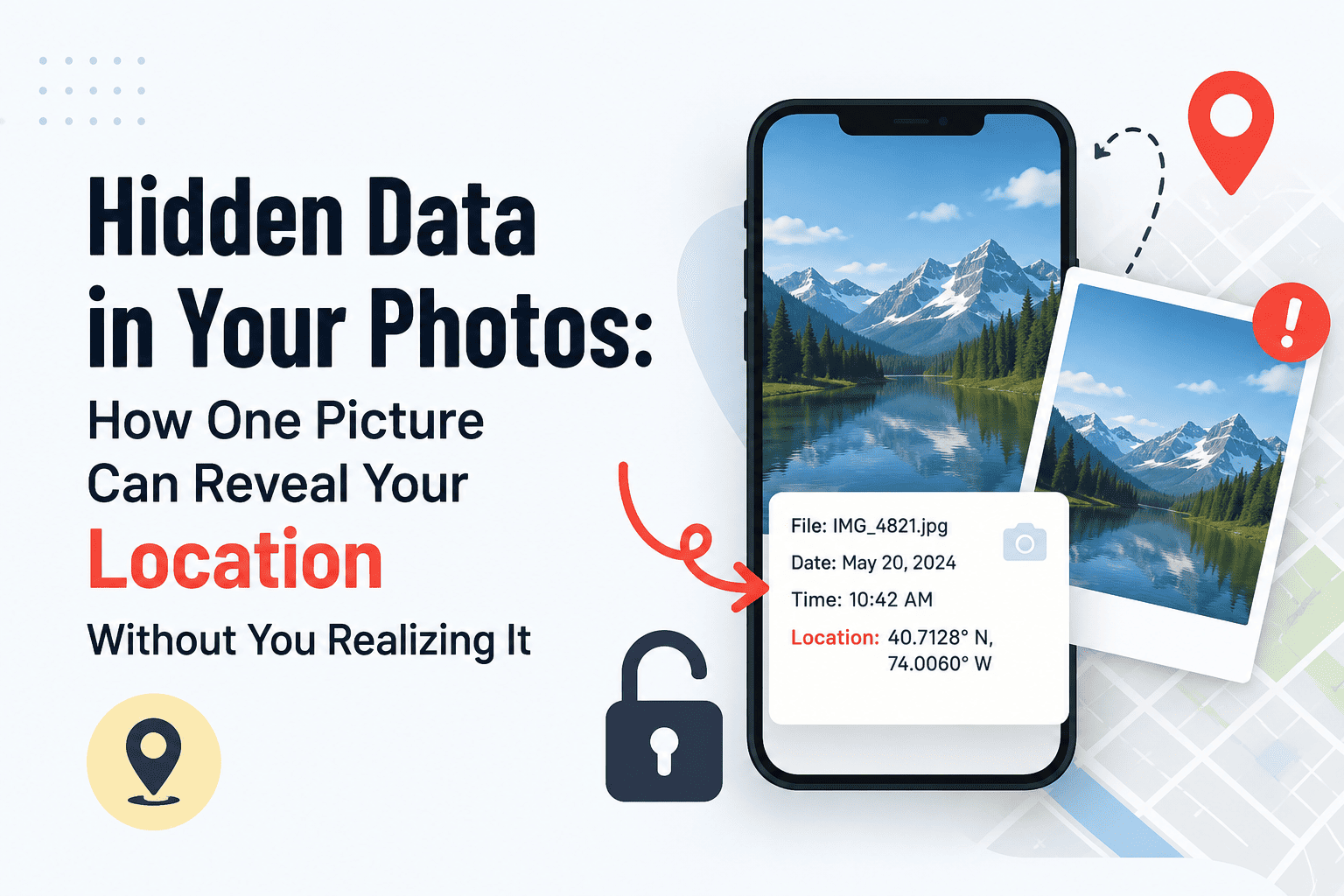
You take a photo of your coffee cup on your kitchen counter and post it online. Nothing sensitive in the frame, right? Except the file you just uploaded might be quietly telling anyone who looks closely exactly which building you were standing in, what time it was, and which phone you were holding when you took it.
This isn’t a rare glitch. It’s how digital photos have worked by default for close to two decades. The picture itself is only part of the file — wrapped around it is a layer of hidden location data in photos that most people never open, never check, and never think to remove.
There is EXIF data within most smartphone pictures that people take. The EXIF data includes the person’s GPS coordinates, the specific time and date when it was taken, and the brand of phone the person is using. While social media platforms strip some data from pictures, many other picture sharing platforms such as messaging and email apps will not do so. It takes less than a minute to strip the data from any picture on an iPhone or Android phone.
What “Hidden Data” Actually Means
The images taken by your smartphone or camera are, in fact, a dual entity stored in a single file: the image and an additional text element known as EXIF (Exchangeable Image File Format). This format was developed in the 1990s to aid cameras and photograph management software in organizing photographs chronologically and by orientation and lens settings. Social media did not even exist at the time.
The problem is that GPS-tagging got added to that same EXIF block once smartphones arrived, and it’s been switched on by default ever since. You never agreed to attach your coordinates to a photo — your phone just does it, the same way it defaults to a handful of other privacy-unfriendly settings the moment you take it out of the box.
7 Things Your Photos Reveal Without You Knowing
1. Your Exact GPS Coordinates
This is not just a general location but a specific one. By saving the latitude and longitude of a place in an ordinary photo taken from your phone, you can identify the location within meters of precision. This precision can help you identify whether it was your own house in that particular street, or the particular room within a building, or the precise bench in the park.
2. The Precise Date and Time
There is also a time stamp beside the coordinates that is accurate to the second. On its own, it appears rather innocuous. In combination with the location data, however, it forms an interesting tale indeed – not just your location, but also your time at that location.
3. Your Exact Device Model
EXIF information will normally indicate the brand and model of the device used, such as “iPhone 15 Pro,” as well as the precise lens for phones having more than one lens. On its own, it is not much of a concern; however, it is a detail which can be used for identifying a particular individual from different pictures.
4. Camera Settings That Create a Digital Fingerprint
Aperture, shutter speed, ISO, focal length — these settings are stored automatically. Researchers studying digital forensics have shown that patterns in these technical details, combined with sensor imperfections unique to individual camera units, can sometimes help link photos back to the same physical device, even when other identifying details have been stripped out.
5. A Location “Trail” Across Multiple Photos
A geotagged photograph shows only one point of location. However, a dozen or more geotagged photographs over a period of a couple of weeks reveal a pattern, such as home, gym, work, coffee shop, and pick up kids from school. It’s like location-based advertisement profiling, except that it’s visible publicly through downloadable files from a public profile or photo sharing URL.
6. Your Home Address, By Accident
It is this very aspect which is generally overlooked by people. For instance, an image containing a photo of a new pet, home renovations, or children unwrapping their gifts from inside the house will always have the GPS location embedded within it, despite the fact that it does not depict a street corner but your own home.
7. Evidence That Can Contradict What You Say
The timestamps and location information provided by metadata are always accurate in contrast to the caption that accompanies the image. In case the timestamp or location information in the metadata contradicts what is claimed on posting the image, it is possible to prove it easily for everyone. The problem has caused embarrassment to celebrities and troubles in many spheres.
What Happens to This Data When You Share a Photo?
Not every platform treats metadata the same way. Some strip it automatically on upload; others pass it along untouched. This is the part most people get wrong — they assume “social media” means “safe,” when it really depends on which app and which sharing method.
| Sharing Method | Strips Location Metadata? | Notes |
|---|---|---|
| Instagram / Facebook feed posts | Usually yes | Compression on upload typically removes EXIF, but not guaranteed on every upload path |
| Text message (SMS/MMS) | Varies by carrier and device | Compression may strip some data, but not reliably |
| Email attachment | No | Original file is usually sent untouched |
| WhatsApp / Signal / Telegram | Partially, depends on send method | Sending as a “file” instead of a compressed image often preserves metadata |
| Cloud storage (Google Drive, Dropbox, iCloud links) | No | Full original file, including all metadata, is preserved |
| Personal blog or website upload | Depends on the platform | Many CMS platforms do nothing to strip metadata by default |
The safest assumption is the opposite of what most people assume: treat every photo as if its metadata is intact unless you’ve personally checked or removed it.
A Real Example of Why This Matters
This isn’t a hypothetical risk cooked up to scare people. In 2007, U.S. soldiers photographed newly arrived Apache helicopters at a base in Iraq and posted the pictures online. According to NBC News, the images contained embedded GPS coordinates that allowed insurgents to determine the helicopters’ exact position inside the compound, leading to a mortar attack that destroyed four aircraft. The U.S. Army later issued formal guidance telling personnel to disable geotagging on personal devices specifically because of this incident.
Those who are uploading pictures from their vacation or from their new apartments do not necessarily have any immediate dangers in that respect. The principle is basically the same: a picture may give away your location without you even realizing it. This applies to both your new house, your children’s pickup area from school, and your office parking lot.
How to Remove Location Data From Photos on iPhone
- Stop it going forward: Open Settings → Privacy & Security → Location Services → Camera, and set it to “Never.” Your camera will still work perfectly — it just stops attaching coordinates to new photos.
- Remove it from an existing photo: Open the photo in the Photos app, tap the i info icon, tap the location shown on the mini-map, then choose “Adjust Location” and select “No Location.”
- Strip it only when sharing (keep it in your library): Select the photo, tap Share, tap “Options” at the top of the share sheet, and toggle “Location” off before sending.
Apple documents this process directly in its Apple Personal Safety guide, which is worth a look if you manage photos across multiple Apple devices.
How to Remove Location Data From Photos on Android
- Stop it going forward: Open your Camera app’s settings and turn off “Save Location” or “Location Tags” (naming varies by manufacturer).
- Remove it from an existing photo: In Google Photos, open the photo, swipe up (or tap the info icon), find the location entry, tap the menu next to it, and select “Remove location.”
- Note the limitation: Google Photos can only edit or remove locations it estimated itself or that you added manually — if your camera embedded the GPS tag directly into the file, you may need a third-party metadata tool or your phone’s built-in Gallery app to strip it fully.
Google’s official support documentation for managing photo location data covers the exact steps for different Android versions and manufacturers.
Alternatives and Extra Layers of Protection
- Metadata-scrubbing apps: Tools like ExifTool (desktop) or dedicated metadata eraser apps can strip EXIF data from large batches of photos at once — useful if you’re clearing out an old photo library before a big upload.
- Screenshot method: Taking a screenshot of a photo and sharing the screenshot instead of the original file removes metadata entirely, at a small cost to image quality.
- Lock down location at the source: Since photo geotagging is really just one more use of your phone’s location services, the broader settings covered in our guide to stopping apps from tracking you reduce your exposure across the board, not just in your camera roll.
- Be extra cautious while traveling: Vacation photos posted in real time, especially over hotel or airport Wi-Fi, combine a fresh geotag with an empty house back home. Our breakdown of the real dangers of hotel and airport Wi-Fi for travelers covers the network side of that same risk.
Pros and Cons of Removing Photo Metadata
| Pros | Cons |
|---|---|
| ✅ Stops your exact location from being exposed publicly | ❌ You lose the ability to browse your own photo library by location |
| ✅ Prevents home-address exposure from indoor photos | ❌ Slightly more effort per photo if done manually, one at a time |
| ✅ Removes device fingerprinting details | ❌ Some travel and memory-keeping apps rely on geotags to function |
| ✅ No cost — built-in tools handle it on both platforms | ❌ Doesn’t fix photos already shared and downloaded by others |
Final Verdict
Photo metadata isn’t a scandal — it’s a default setting nobody asked you about. For photos staying inside your private library, it’s genuinely useful, helping you find memories by place and time. The moment a photo leaves your control, though — posted, texted, emailed, or uploaded to cloud storage — that same data becomes something anyone can extract with zero technical skill.
Recommended action: Turn off Camera location access for good, and get into the habit of checking the “Options” or “Remove Location” step before sharing any photo publicly. It takes seconds and closes one of the easiest privacy gaps most people never think to check.
Frequently Asked Questions
Can someone find my home address from a single photo?
Yes, if the photo was taken at home with location services enabled and the file’s original metadata is intact. This applies even to indoor photos that show nothing identifiable in the frame — the coordinates are attached to the file, not the visual content.
Does Instagram or Facebook remove location data automatically?
In most cases, yes — image compression during upload typically strips EXIF data, including GPS tags. This isn’t guaranteed on every device or app version, so it shouldn’t be treated as a reliable safety net on its own.
If I turn off location for my Camera app, does that affect anything else?
No. Turning off location access specifically for the Camera app has no effect on Maps, navigation, weather, or any other app’s location permissions — those are controlled separately.
Are old photos I already posted years ago still a risk?
If the original files were downloaded before any metadata-stripping happened on the platform’s end, then yes, those downloaded copies still carry the original data. There’s no way to retroactively scrub copies already saved by someone else.
Do screenshots contain location metadata?
No. A screenshot is a new image file generated by your phone’s display, not the original camera file, so it doesn’t carry the original photo’s GPS or camera data.
Is this only a concern for people who post publicly?
No. Even photos sent privately over email, cloud storage links, or as “file” attachments in messaging apps typically retain full metadata. The recipient — or anyone who later gains access to that message or file — can extract the same location data.