Everyone activates their login alerts yet ends up getting hacked. What matters most is not the alert per se but what people do after receiving the alert. Failure to read an alert that you are “kind of familiar with,” failure to take action against unsuccessful login attempts, and confusing an actual alert with a phishing message are the three major causes of missing the first red flag regarding a hacked account. This can be easily sorted out by reading the alert and taking action almost immediately after.
The Notification You Just Swiped Away Might Have Been the Only Warning You Get
Currently, there should be a message on your mobile that states “New Sign-In on Windows Device” or “Your Password Used On An Unfamiliar Browser”. You have seen this message, swiped it off and forgotten all about it.
This is not because you do not care about it; but because this kind of message is created in such a way. The phenomenon of notification fatigue is very common and a login message can be mixed up with other types of messages, for example, app update messages. However, login message is unique in its own way.
If you’ve already set up login alerts on your accounts, that’s the hard part done. This article covers the part almost nobody talks about: the small, everyday mistakes that quietly cancel out the protection those alerts are supposed to give you.
7 Login Alert Mistakes You Didn’t Know You Were Making
1. Dismissing Alerts You “Sort Of” Recognize
“Oh, that must be my laptop.” Maybe. However, “must be” is quite an assumption. People who steal other people’s identities often sign on from areas geographically near the person whose identity was stolen to not raise any alarms. An improbable sign-on is precisely the type of thing that attackers hope you will sign on to without verifying further.
What needs to be done: look at the alert and verify the device name, the browser, and the city.
2. Mistaking a Phishing Email for a Real Alert
Fake “unusual sign-in activity” emails are one of the most reliable phishing templates in existence, because they exploit the exact instinct you’re supposed to have — urgency. The scam email tells you to click a link and “verify your account immediately,” and the fake login page harvests your real password the moment you type it in. This is the same structure used in fake PayPal phishing emails, just aimed at your email or social account instead of your payment app.
The fix: never click the link inside the alert. Open a new tab, type the platform’s address yourself, and check your account activity from there.
3. Sending Alerts to a Channel You Never Check
An alert that arrives in an inbox you open once a week isn’t protecting anything in real time. A lot of people set up email alerts years ago and have since moved almost all their attention to push notifications or SMS — but never went back to update the setting.
The fix: route alerts to whichever channel gets your fastest reaction. For most people that’s a push notification, not email.
4. Ignoring “Failed Login Attempt” Alerts
If the sign-in alert turns out to be successful, someone signed in. If it is not, it is an indication that the person has attempted to log in but failed. Most people tend to ignore this particular type of alert by arguing, “Oh well, it did not work, so what’s the big deal.” However, it is almost always the first step towards numerous others.
The solution: view this alert as an indication for changing your password.
5. Not Checking the Location or Device Field At All
The alert is not going to say simply “Someone logged in”. It may contain information regarding the city, IP-based region, device type, and browser. Most of us tend to just glance at the heading part and miss the true facts.
The solution is to make it a habit to quickly check the city and device before you ignore it. If you were on your phone at your house and there is an alert about a Windows PC in another country – take notice.
6. Treating a Single Alert as a One-Off Instead of a Pattern
One weird alarm may be just that—a virtual private network connection, a relative on your account, or a log-in somewhere else. If you get three weird alarms per month, then that is definitely not a fluke. People frequently change their minds after every alarm rather than associating it with the last one.
The fix: if you’ve had more than one unexplained alert recently, stop assuming coincidence. Change your password and check your device’s security software for anything that might be logging your keystrokes before you even type them into the login page.
7. Never Turning Alerts On in the First Place
This one isn’t about ignoring an alert — it’s about never giving yourself the chance to see one. If you haven’t checked whether your email, banking app, and social accounts actually have this feature switched on, none of the other six mistakes even apply to you yet, because you’re not receiving anything to ignore. Setting it up properly, platform by platform, is worth doing before anything else on this list — here’s exactly how and where to enable it.
Real Alert or Fake Phishing Alert? How to Tell the Difference
| Signal | Real Login Alert | Fake Phishing Alert |
|---|---|---|
| Sender address | Matches the platform’s verified domain exactly | Slightly altered domain, or a generic email service |
| Urgency language | Informational tone, no countdown or threats | “Act now,” “account will be suspended,” artificial pressure |
| Link behavior | You can verify the same info by opening the app directly | Link is the only way the email wants you to “confirm” anything |
| Personalization | Often includes real account details like your actual device name | Vague, generic greetings like “Dear valued user” |
| Request | Never asks you to enter your password inside the email | Leads to a fake login page asking for your password |
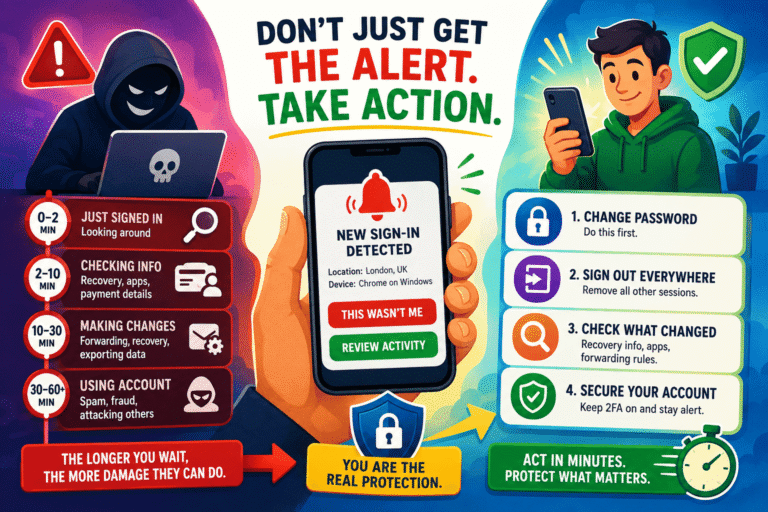
What To Do the Moment an Alert Looks Off
- Don’t click anything inside the notification. Open the platform separately, using an address you typed yourself.
- Change the password immediately from within the account’s real security settings — not a variation of the old one.
- Revoke every active session using the “sign out of all devices” option almost every major platform includes.
- Turn on two-factor authentication if it isn’t already active, so a leaked password alone isn’t enough to get back in.
- Check connected apps and forwarding rules — attackers who get into email often quietly set up auto-forwarding to keep reading your messages after you’ve changed the password.
Push, Email, or SMS: Which Alert Channel Actually Works Best?
| Channel | Pros | Cons |
|---|---|---|
| Push notification | Fastest to arrive, hard to miss, shows on lock screen | Useless if the app itself is uninstalled or notifications are muted |
| Detailed, keeps a record you can search later | Easy to miss for hours, and worthless if the email account is the one compromised | |
| SMS | Reaches you even without an internet connection | Vulnerable to SIM-swapping in rare but serious cases |
The strongest setup uses more than one channel for your most important accounts — push for speed, email for a paper trail.
Alternatives and Habits Worth Pairing With Login Alerts
Alerts tell you something happened. They don’t prevent it from happening in the first place. A few habits close that gap:
- A password manager. Reusing passwords is the root cause of most credential-stuffing attacks that trigger these alerts to begin with.
- Two-factor authentication. Blocks the login attempt outright, so the alert becomes a record of a failed attack instead of a successful one.
- Reviewing your device’s default settings. Some default phone settings make it easier for session data to leak in the first place.
- Being cautious on public networks. Logging in over unsecured public Wi-Fi is one of the more common ways credentials get intercepted before an alert ever fires.
- Breach monitoring. Checking whether your email has appeared in a known breach through Have I Been Pwned tells you if your password is already circulating before an alert even has a reason to trigger.
Final Verdict
Rating: Fix This Tonight — It Takes Ten Minutes.
Login warnings will not work unless the one receiving the alerts actually reads and follows through on them. In most cases, the reason for account takeover is not the absence of security measures but the failure to follow an alert sent out. Look at your alerts for the past week. If anything is even remotely suspicious, change the password immediately.
Frequently Asked Questions
How do I know if a login alert is legitimate?
Check the sender’s exact email domain, avoid clicking any link inside it, and verify the activity by opening the platform directly through Google’s own account security page or the equivalent settings page for that service.
Why do I get login alerts even when it’s really me signing in?
New devices, cleared browser cookies, VPN use, or signing in from a different city while traveling can all trigger a legitimate alert for your own activity. Most platforms let you mark a device as “trusted” to stop repeat alerts from it.
What should I do if I already clicked a fake login alert link?
Change your password immediately from the real platform, not the page you clicked through to. Report the incident using resources like IdentityTheft.gov, and monitor the account closely for a few weeks.
Do failed login attempt alerts matter if the attacker never got in?
Yes. A failed attempt usually means your password or email is already in a leaked credential list being tested somewhere. Change the password before the next attempt succeeds.
Can I trust login alerts sent only by SMS?
Mostly, but SIM-swapping attacks — while uncommon — can redirect your text messages to an attacker’s device. Pairing SMS alerts with an authenticator app or push-based alert closes that gap.
Where can I learn general best practices for staying safe online?
Government cybersecurity agencies like the Cybersecurity and Infrastructure Security Agency (CISA) and the UK’s National Cyber Security Centre both publish free, regularly updated guidance for everyday users.