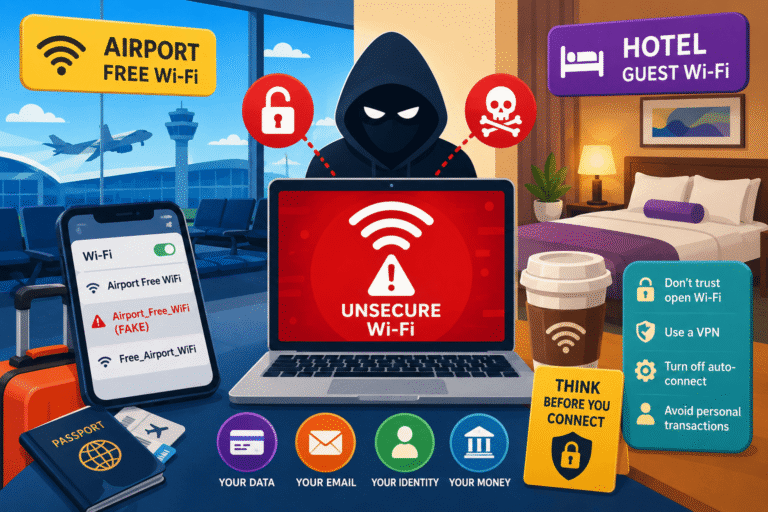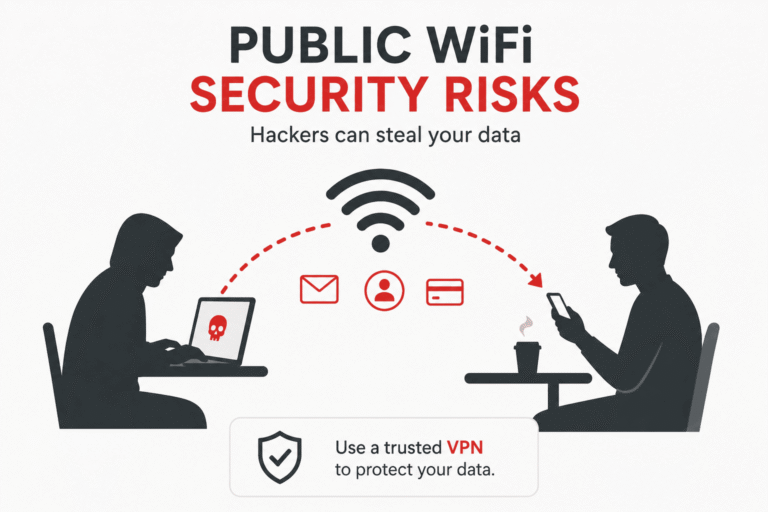
You’ve heard the same stories regarding public Wi-Fi at airports and cafes hundreds of times before. However, what about the router installed in your hallway closet? This little device is now responsible for all the connections made via your laptop, phone, television, baby monitor, and other pieces of equipment that you forgot long ago about. This piece of hardware is the only entrance into your digital life and has never been protected properly until now.
Most security advice focuses on public Wi-Fi security risks because that threat feels obvious — you’re on a stranger’s network. But your home router is the one device that touches everything you own, all day, every day, and almost nobody ever opens its settings page after the initial setup.
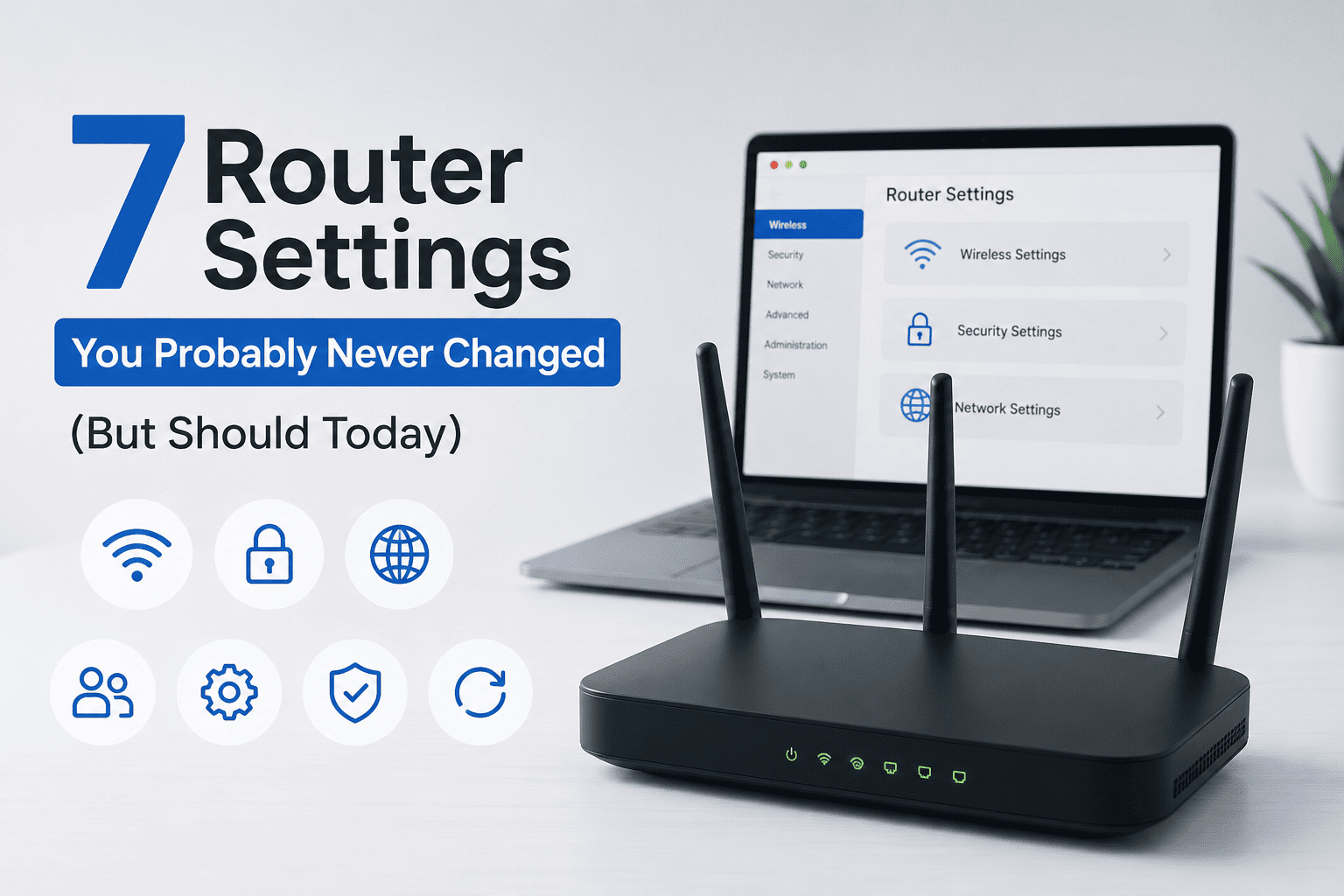
Brief Answer: The seven most important configuration parameters for your router are the default administrator password, WPS, outdated firmware, UPnP, isolation of the guest network, Wi-Fi encryption, and remote administration. By default, manufacturers configure their routers in the “convenience first” mode; these configurations need to be modified in order to enhance the security of the device. Modification of the seven parameters that can be done within two minutes each will eliminate all vulnerabilities.
Why Your Router Gets Ignored (And Why That’s a Problem)
The majority of users install the router, attach the devices and forget about the settings page completely. No update request for the router’s firmware comes at any point. There is no message reminding one that the administrative password is still “admin/admin”. No reminder regarding the UPnP protocol being enabled.
Your phone nags you constantly about software updates. Routers don’t nag — they just sit there, running the same configuration for years, sometimes for the entire life of the device. CISA points out that home users often assume their network is too small or too personal to be worth attacking, but automated scanning tools don’t care how big your network is. They scan blocks of IP addresses looking for known default credentials and unpatched firmware, and a home router is exactly as visible to that scan as a corporate one.
The 7 Router Settings You Need to Check Today
1. The Default Admin Password (Not the Wi-Fi Password)
Every router has two passwords, and the vast majority of people tend to think only about one of them. The WiFi password is the one that allows your devices to get access to the network. The admin password is what controls the router in its entirety – the firewall, DNS settings, the list of connected devices, and all other functions. In countless numbers of cases, the latter remains “admin” or “password.”
That sticker information is often public. Default credentials for nearly every consumer router model are searchable online in seconds, which means an attacker doesn’t need to guess your password — they just need to know your router’s brand. The FTC recommends resetting both the Wi-Fi password and the admin password to something unique and unrelated to each other.
If you’ve already built the habit of treating every login as worth protecting — the same instinct behind turning on login alerts for your other accounts — apply it here too. The router’s admin panel is the one login most people forget even exists.
2. WPS — The Push-Button Shortcut Hackers Love
The purpose of WPS is to simplify the connection of devices. It uses either a physical button press or entry of an 8-digit PIN number instead of inputting the Wi-Fi password. The vulnerability here lies in the fact that due to the way WPS verifies this PIN number in two parts, it can be cracked within several hours no matter how good your password is.
In other words, WPS being enabled means your carefully chosen 20-character Wi-Fi password is protected by an 8-digit PIN with a well-documented weakness. CISA’s home Wi-Fi guidance calls for disabling WPS outright, since the convenience it offers isn’t worth the shortcut it hands to anyone within range.
3. Outdated Firmware
The firmware is what drives your router, and just like on your phone, it will not update itself unless you explicitly tell it to – unless you have one of the new routers which update themselves. These updates do come from the manufacturers but then again, they don’t do any good if not installed.
In 2018, the FBI issued a rare public advisory asking anyone with a home or small-office router to reboot it immediately, after malware known as VPNFilter infected hundreds of thousands of routers worldwide. Rebooting cleared part of the infection, and the incident became one of the clearest real-world examples of why keeping firmware current — not just occasionally power-cycling the device — actually matters. You can read the original FBI advisory here.
Log into your router’s admin panel and look for a firmware or software update section. If it doesn’t check automatically, visit the manufacturer’s site directly. A router that hasn’t received a firmware update in several years has usually reached end of life and should be replaced rather than patched.
4. UPnP (Universal Plug and Play)
UPnP allows any device connected to your network to automatically open ports on your router without requiring permissions, which is useful for gaming consoles or smart speakers that need access to the Internet. However, this feature is among the most misused in consumer-grade routers, since any malware already present on the network can open additional ports through UPnP, no password needed.
The advice from CISA is simple: allow UPnP temporarily, until you connect a certain device to your network, then turn it off.
5. No Guest Network
When all the devices that you have in your house like kids’ tablets, smart plugs, charger for fitness trackers, and mobile phones of visitors join the same network as your PC and banking apps, then a vulnerable device opens up an entry point for others. Your smart bulb should not have access to your work PC, but this happens on a flat network.
Setting up a separate guest network takes a few minutes in most router apps. CISA specifically recommends routing IoT and smart-home devices through it rather than your main network, because those devices tend to receive the fewest security updates of anything in the house. It’s the same logic behind checking which default settings on your phone are working against you — devices you trust automatically aren’t always trustworthy by design.
6. Weak Wi-Fi Encryption (WEP, WPA, or WPA2-TKIP)
Encryption scrambles the data traveling between your devices and your router so a nearby stranger can’t just pull it out of the air. WEP, the oldest standard, can be cracked in minutes with freely downloadable tools. Older WPA and WPA2-TKIP configurations aren’t much better. WPA2-AES is a reasonable baseline for an older router, while WPA3 — introduced by the Wi-Fi Alliance in 2018 — closes several remaining gaps, including much stronger resistance to password-guessing attacks.
If your router’s security settings only list WEP or plain WPA, treat that as a sign the hardware itself is outdated, not just the configuration.
Worth clearing up here: a VPN encrypts the connection between your device and the VPN server — it doesn’t retroactively fix a weak Wi-Fi encryption standard sitting between your laptop and the router in the next room. That mix-up trips a lot of people up, and it’s one of several VPN privacy myths worth knowing before you assume a VPN alone covers you.
7. Remote Management Left Switched On
The remote management feature allows you to access the administrator panel of your router from any location other than your home network through the internet. This sounds like a good idea. However, it makes the admin panel available for everyone on the internet rather than everyone in your home and adds yet another item to the brute-forcing attack list, potentially carried out from thousands of miles away.
While remote management is typically turned off by default for most routers, it is enabled for routers provided by ISPs and for some mesh networks. Remote management is not recommended by CISA and the FTC unless you have an explicit use case for it. If occasional remote management works well for you, using the proper configuration of the VPN to your home network is the better choice.
Router Settings At a Glance
| Setting | Typical Default | Risk If Left Alone | What To Do |
|---|---|---|---|
| Admin password | admin / password / blank | Full router takeover | Set a unique password, different from the Wi-Fi password |
| WPS | Enabled | PIN can be brute-forced in hours | Disable in wireless settings |
| Firmware | Whatever shipped with the box | Known, unpatched vulnerabilities | Update manually or enable auto-updates |
| UPnP | Enabled | Malware can open ports without permission | Disable unless actively needed |
| Guest network | Not configured | One weak device exposes the whole network | Create a separate network for guests and IoT |
| Wi-Fi encryption | WPA2 or older | Traffic can be intercepted or cracked | Switch to WPA3, or WPA2-AES at minimum |
| Remote management | Varies by ISP | Admin panel reachable from the internet | Disable unless specifically required |
Pros and Cons of Just Doing a Factory Reset
When it comes to routers which have been in use for many years and whose settings have never been altered, resetting everything back to factory settings becomes the easiest solution; not always though.
Pros
- Wipes out any unknown changes a previous owner, guest, or piece of malware may have made
- Forces you to set a new admin password and Wi-Fi password from the start
- Gives you a clean opportunity to check for a firmware update before reconnecting anything
Cons
- You’ll need to manually reconnect every device and rebuild any custom settings
- A factory reset restores factory defaults — including WPS and UPnP switched back on — so you still have to work through this checklist afterward
- If the router is more than five or six years old, a reset won’t fix hardware that no longer receives security updates at all
Your 5-Minute Router Security Checklist
Save or screenshot this list. Most of these take under a minute each once you’re logged into the settings page.
- Log in and change the admin username and password
- Turn off WPS
- Check for a firmware update, and enable automatic updates if available
- Turn off UPnP unless a specific device needs it right now
- Set up a guest network for visitors, smart home devices, and IoT gadgets
- Switch encryption to WPA3, or WPA2-AES if WPA3 isn’t available
- Turn off remote management unless you specifically use it
Alternatives If You’d Rather Not Touch the Settings Yourself
Not everyone wants to dig through a router’s admin panel, and the interfaces are rarely intuitive. A few options if manual configuration isn’t for you:
- Mesh Wi-Fi systems with app-based controls. Most modern mesh systems handle firmware updates automatically and walk you through setting a real admin password during setup, removing several of these risks by default.
- ISP-managed routers with built-in security add-ons. Some providers now bundle threat detection and automatic patching with the router rental, though you’re trusting the ISP with more control over your network in exchange.
- A one-time audit from someone else. A single 20-minute session with a tech-savvy friend or a paid setup service covers everything on this list and rarely needs repeating except for periodic firmware checks.
- A dedicated travel router for frequent travelers. If you regularly connect to hotel or rental Wi-Fi, a personal travel router adds a layer of control the property’s own network doesn’t give you — worth pairing with what to watch for on hotel and airport Wi-Fi specifically.
The Verdict
None of them require any technical expertise whatsoever, nor do they incur any charges at all. Corrections of admin password, WPS, and remote management issues will take ninety seconds all together. Updating of firmware and creating guest network will take a bit longer. Since everything about the modern life revolves around this one piece of technology – from banking to passwords at work, from smart locks to surveillance cameras – dedicating an hour of your Sunday to doing these tasks is one of the most efficient security measures you can take at home.
Frequently Asked Questions
How do I even get into my router’s settings?
Type your router’s IP address into a browser — commonly 192.168.0.1 or 192.168.1.1 — or check the sticker on the router itself, which usually lists the correct address along with the default login. Most manufacturers also offer a companion app that handles this automatically.
Does a VPN protect me if my router settings are still weak?
A VPN encrypts traffic leaving your device, but it doesn’t fix an insecure router sitting between your devices and the internet. Someone who compromises the router itself can still see or redirect traffic before it ever reaches your VPN connection. Both matter, and neither replaces the other.
How often should I change my Wi-Fi password?
There’s no need to rotate it on a fixed schedule. Change it when you suspect it’s been shared too widely, when a device that had access is no longer trusted, or during initial setup. A strong, unique password that stays the same beats a weaker one you change constantly.
Is it safe to keep using a router my ISP gave me for free?
Yes, as long as you work through the same checklist. ISP-provided routers ship with the same convenience-first defaults as anything you’d buy yourself, and in some cases the default credentials are even more widely known.
What’s the actual difference between the Wi-Fi password and the admin password?
The Wi-Fi password lets a device join your network. The admin password lets someone control the router itself — including viewing connected devices, redirecting traffic, or changing the Wi-Fi password. Losing control of the admin password is the more serious problem of the two.
My router doesn’t support WPA3. Do I need to buy a new one?
Not urgently. WPA2-AES is still considered reasonably secure for home use. If your router only offers WEP or plain WPA, though, that’s a stronger signal it’s time to replace the hardware rather than adjust a setting.
Your router doesn’t ask for attention the way your phone or laptop does, which is exactly why it’s worth giving it some anyway. Seven settings, most of them under a minute apiece, and the box in the closet finally starts working for you instead of against you.